Add Funds
Top up your prepaid balance any time at panel.flynumber.com/add-funds — or click the Add Funds button in the header chip from anywhere in the panel. Minimum $1, maximum $500 per transaction.
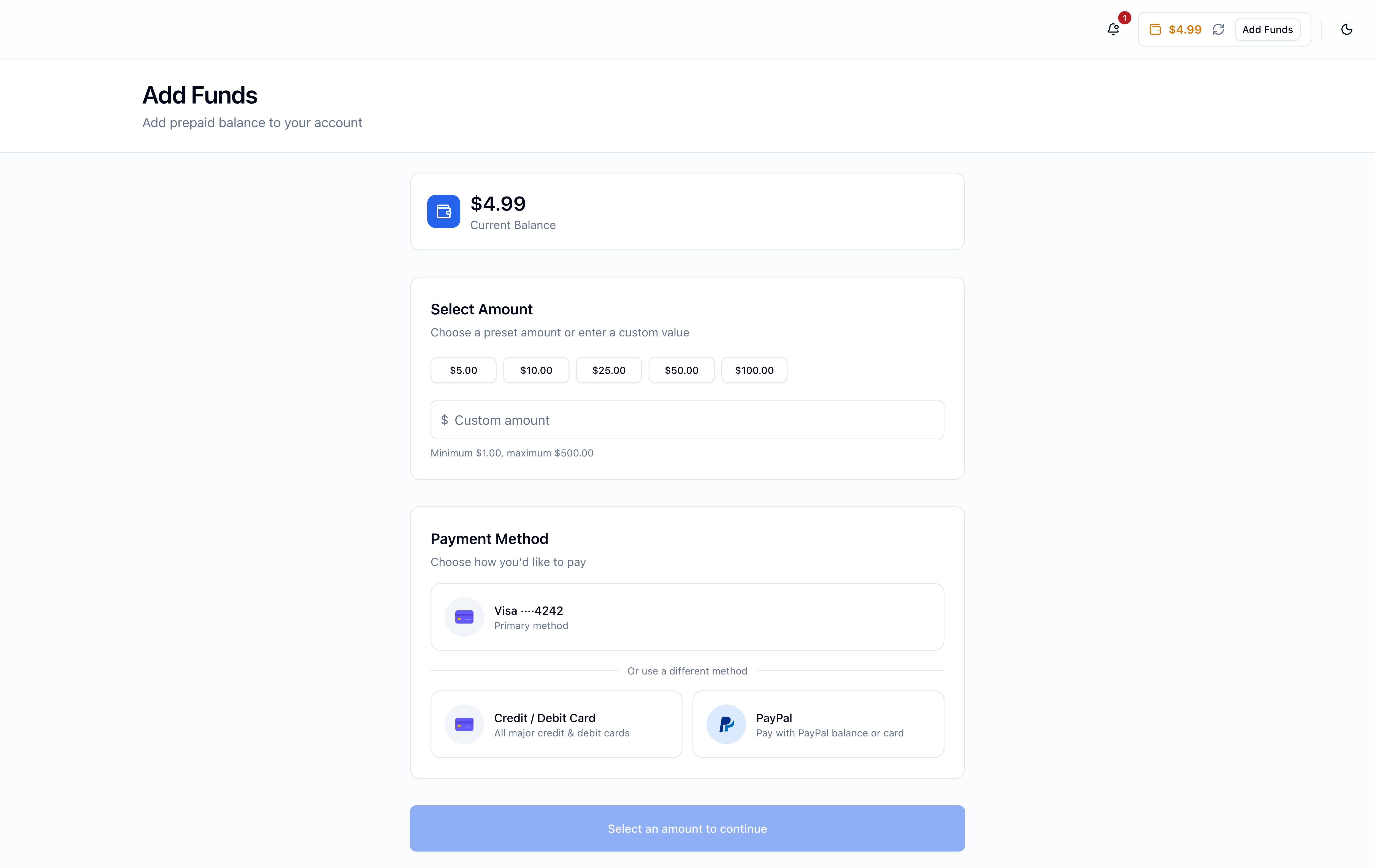
The page at a glance
Three sections, top to bottom:
- Current Balance — what you have right now, before the new top-up
- Select Amount — five preset buttons ($5, $10, $25, $50, $100) or a custom amount
- Payment Method — your saved Primary method at the top, plus Credit / Debit Card and PayPal options beneath "Or use a different method"
A Continue button at the bottom activates once you've picked an amount.
Picking an amount
Tap one of the preset chips for a quick top-up, or type any value between $1.00 and $500.00 into the custom-amount field. The currency is always USD.
If you need more than $500 in one go, run two top-ups back-to-back — the second one starts from the new balance.
Paying with a saved method
If you've saved a card or PayPal vault (from a past purchase or the Payment Preferences page), the Primary method sits at the top of the Payment Method section. Click the row, then Continue.
We charge the saved method server-side — no redirect, no new tab. If your bank requires 3-D Secure for the amount, a modal pops up to verify; otherwise the charge completes in a couple of seconds and the balance chip in the header updates immediately.
The Primary badge is the first method in your priority-ordered list. If you have multiple saved methods and want to charge a different one, switch from Payment Preferences to change the priority order, then come back.
Paying with a new card
Click Credit / Debit Card and we hand off to Stripe's hosted checkout. Enter your card details, complete any 3-D Secure challenge if your bank asks, and you'll return to the panel with the funds credited.
The card is saved to your account on success, so future top-ups (and number renewals, if Charge saved card on renewal is on) can charge it directly without the hosted checkout.
Paying with PayPal
Click PayPal, sign in via PayPal's flow, approve the payment, and return. The PayPal account is added to your saved methods on success — the next time, you'll see it listed alongside your cards.
PayPal works without a PayPal account too: PayPal's flow accepts guest credit-card payments. The result on our side is identical (funds credited, transaction recorded), but the payment method isn't saved if you used the guest path.
What happens after payment
- The header balance chip updates in real time — no refresh needed
- A new row appears on the Transactions page with the payment method, amount, and a downloadable receipt
- The funds are immediately usable for any charge — number purchases or renewals, phone-system fees, SMS, outbound calls
You won't see "Prepaid Balance" as an option on Add Funds — you can't top up the balance using the balance itself. To use prepaid as a payment method, head to the regular checkout (when buying a number or the phone system) where it appears alongside cards and PayPal.
Where to next
- Manage saved cards or PayPal — Payment Preferences
- Auto-refill when balance dips — Payment Preferences
- Review past top-ups — Transactions
- See how billing fits together — Overview