Porting Phone Numbers
Bring an existing phone number into FlyNumber, or move a FlyNumber out to another provider. The port-in flow lives in the panel at panel.flynumber.com/porting — a single form, a small set of statuses, and notifications at every transition. Port-out is handled by support rather than an in-panel form and carries a one-time $3 USD fee per number.
What can be ported
| Direction | How | Where | Fee |
|---|---|---|---|
| In — bring an existing number to FlyNumber | Submit a request from the Porting page | /porting | Free for most countries — see Port-in fees |
| Out — move a FlyNumber to another provider | Open a support ticket | Contact support | $3 USD per number, one time — see Port-out fee |
The main eligibility rule for port-in: the number must be active with your current carrier at the moment we file the port. Cancelled or already-released numbers can't be ported. Mobile, landline, VoIP-based numbers (including Google Voice / Skype), and toll-free numbers are all in scope where coverage allows.
Porting a number IN
Start a request
Open /porting from the Porting entry in the sidebar. New accounts see an empty list with a single Start a new port request button at the top right.
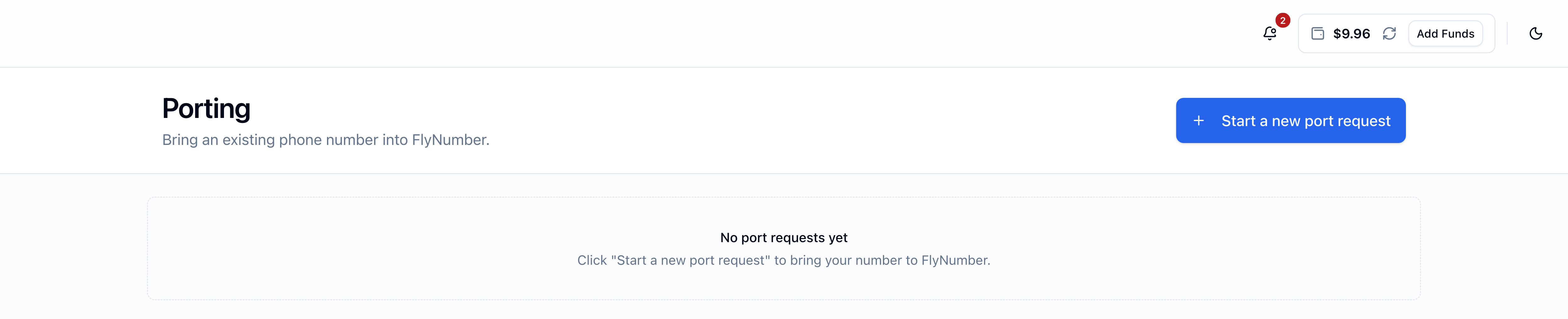
Click Start a new port request to open the submission form at /porting/new.
Fill out the form
The form is intentionally short and adapts to the country + number type you pick:
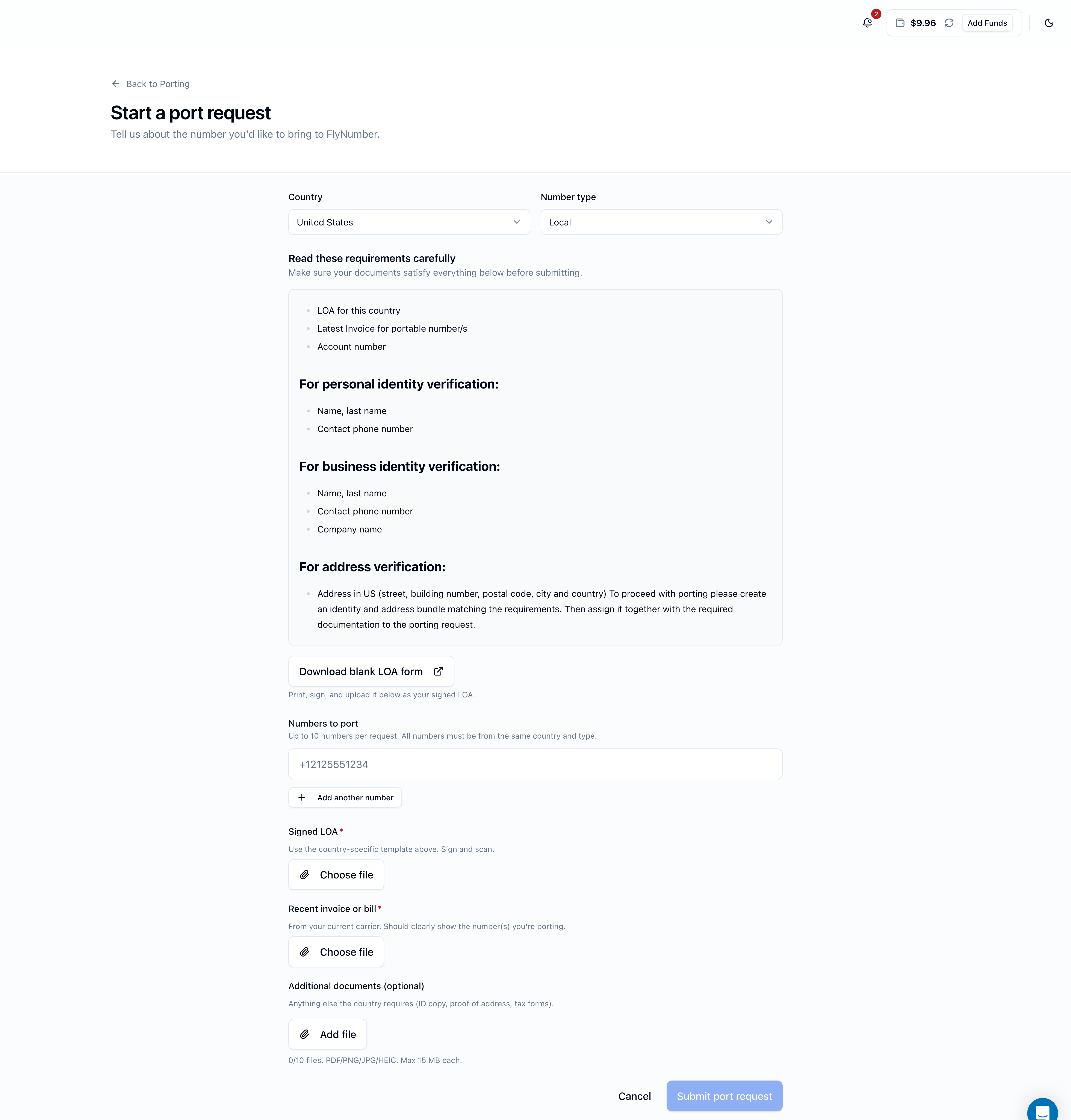
| Field | What it does |
|---|---|
| Country | The country your number is currently in. The dropdown shows every country we can port from today. If yours isn't listed, contact support. |
| Number type | Local, Mobile, or Toll-free — options vary per country. |
| Read these requirements carefully | An auto-populated card listing exactly what's needed for that country + type combination. Read it before uploading. |
| Download blank LOA form | The Letter of Authorization template specific to your country. Print it, sign it, scan or photograph the signed copy, and upload it below as the Signed LOA. |
| Numbers to port | Up to 10 E.164 numbers per request. All must be from the same country and same number type. |
| Signed LOA | Required upload. The country-specific LOA template, signed. |
| Recent invoice or bill | Required upload. From your current carrier, clearly showing the number(s) being ported and account details. |
| Additional documents (optional) | Up to 10 extra files — ID copy, proof of address, tax forms, etc., per whatever the country's requirements panel listed. |
File formats accepted: PDF, PNG, JPG, HEIC. Maximum 15 MB per file.
For numbers from Google Voice, Skype, or similar online providers that don't issue traditional invoices, a screenshot of your account dashboard clearly showing the number and account name is generally accepted as the invoice. Make sure the screenshot is recent.
For Google Voice specifically: you also need to unlock the number in Google Voice settings before the port can start, and don't delete the Google Voice number during the porting process.
Port-in fees
Porting in is free for most countries. A small number carry a one-time fee that's deducted from your prepaid balance at the moment you submit:
| Country / type | Fee per number |
|---|---|
| Switzerland (all number types) | $75 USD |
| Hungary (local and national) | $95 USD |
| Sweden (mobile) | $75 USD |
| Sweden (toll-free) | $210 USD |
| Everywhere else | Free |
If a fee applies, the form shows a yellow notice above the upload section with the total (per-number fee × count) and your current balance. The Submit port request button is disabled until your prepaid balance covers the total. Top up first via Add Funds or Auto-Refill.
Refund handling. If we reject your request, or you cancel it before it moves to "In progress" status, the fee is automatically credited back to your prepaid balance. You'll see the credit on Transactions and the rejection or cancellation notification mentions the refund.
Porting out is a different fee: a flat, one-time $3 USD per number, regardless of country. See Port-out fee.
Status pipeline
Every port request moves through one of six statuses. Open the request from the list to see its full timeline.
| Status | Color | What it means |
|---|---|---|
| Submitted | Blue | We received your request and documents. You'll get a confirmation notification right away. |
| In progress | Sky | We've started working with the source carrier. This is the longest stage — usually the bulk of the total turnaround sits here. |
| Needs more info | Amber | We need something from you. The notification includes our specific message; the request detail page shows the message and lets you re-upload documents. |
| Port complete | Emerald | The source carrier handed your number over. Activation in your panel may take a short final step — see After completion. |
| Rejected | Rose | The port couldn't go through. The notification includes the reason. Any fee charged is auto-refunded. |
| Cancelled | Zinc | You cancelled the request from the panel. Only possible while still in Submitted. Any fee is auto-refunded. |
Notifications fire on every transition through both email and in-panel. The Porting category is on by default; flip email and panel preferences independently at Notification Settings.
We don't ping you with carrier-side milestones (FOC dates, hand-off scheduling, etc.). The next notification you'll get is either Port complete, Needs more info, or Rejected. Submission to completion typically takes a few business days for US/Canada and 1–3 weeks for international ports, depending on the source carrier.
Tracking a request
The list at /porting shows every request you've submitted — most recent first — with its status pill, submission date, country/type, number count, and fee. Click any row to open the detail page, which shows:
- The full status timeline (every transition + notifications sent)
- The number(s) you submitted
- The documents you uploaded (download links to review)
- A Cancel button (only available while Submitted)
- An upload form (only available while Needs more info — see Resubmitting)
The list and detail pages refresh on their own as our team updates the request, and you'll get a panel toast + email notification the moment a transition lands.
If we need more info
When a port enters Needs more info, the detail page expands an inline upload form right under our message. You can:
- Replace the Signed LOA with a corrected version
- Replace the Recent invoice or bill
- Add or replace items in Additional documents
You don't have to re-upload everything — only the items the message asked for. Click Resubmit and the request flips back to Submitted for our team to review again. You'll get a fresh confirmation notification.
If your port is rejected
A rejection notification arrives with the specific reason in the body. The most common causes:
- Account information on the LOA didn't match the source carrier's records (name, billing address, postcode)
- Number wasn't active or was already ported elsewhere
- Required documents missing or unreadable
- Source carrier refused the port (usually contract-related — check your status with them)
If a fee was charged at submission, it's automatically credited back to your prepaid balance as part of the rejection — you don't need to ask.
You can submit a fresh port request after fixing whatever caused the rejection.
After completion
When your port hits Port complete, the source carrier has officially released your number to us. There's usually a short final step on our side to wire the number up in your panel — when that's done, it appears under My FlyNumbers with billing active and a separate notification confirming it's live.
Once it's in your panel, treat it like any other FlyNumber:
- Configure call handling — forwarding, VoIP, FlyNumber SIP, or the phone system
- Test inbound and outbound calls
- Cancel your old service if you haven't already (do NOT cancel before this point — see Best practices)
SMS on ported numbers
If you're porting a number that currently supports SMS, SMS will only continue to work on FlyNumber if:
- The country and number type are SMS-enabled in our coverage — check the Coverage page and look for the SMS in capability badge
- The carrier didn't strip SMS from the number during the port-out process
International SMS to your FlyNumber follows the same delivery rules as any FlyNumber — see SMS Information → International reliability for the why.
For SMS pricing and segment math, see SMS Billing.
Best practices
- Don't cancel your old service until the port is complete. Cancelling before the port completes will break it. Wait for the final "your number is live" notification.
- Match account information exactly. Name, billing address, postcode, account number — every field on the LOA needs to match the invoice you upload. Mismatches are the most common rejection cause.
- Have everything ready before clicking Submit. Read the country-specific requirements panel, gather all documents, then start the form.
- For UK numbers, double-check the postcode. UK carriers enforce strict matching and a postcode typo will fail the port.
- Keep your prepaid balance topped up if you're porting in from one of the fee-charged countries (CH, HU, SE) — Submit is disabled until your balance covers the fee — or if you're porting out, where the $3 USD fee is deducted from the same balance.
- Don't port the same number twice. Once a port is in In progress, cancelling isn't possible from the panel — contact support if circumstances change.
Porting a FlyNumber OUT
We don't have an in-panel form for port-out yet — outbound ports are handled by support directly. To start one:
- Contact support and let us know
- Include: the FlyNumber you want to port out, the provider you're moving to, and any porting reference they've given you
- Your new provider will request specific information from us (account number, validation code, etc.) — we'll respond to them
We don't lock numbers, use port-out PINs, or block legitimate port-outs.
Port-out fee
There is a one-time $3 USD fee for each number you port out. It's the same for every country and number type, and it's deducted from your prepaid balance — not charged to a card.
- Amount: $3 USD per number
- When: once, at the point the port-out goes through
- Charged to: prepaid balance
Make sure your balance has at least $3 USD available per number before the port-out completes. If it's short, top up via Add Funds.
Don't cancel the FlyNumber yourself while the port is in progress. The same rule that applies to port-in applies here: only an active number can be ported, and an expired one is released by the carrier and can't be recovered.
If something's not working on FlyNumber — coverage, voice quality, a feature you need — let us know first. We can often work with our carriers to resolve issues. Once a port-out is in motion, undoing it is much harder.
Where to next
- Start a port request — Porting page in the panel
- Notification preferences for porting updates — Notification Settings
- Top up prepaid balance (needed for fee-charged port-in countries and the $3 USD port-out fee) — Add Funds
- Check whether a country supports SMS — Coverage
- Configure call handling once your port is live — Set Up Forwarding
- Move a FlyNumber to another provider ($3 USD per number) — Contact support
- Country-specific restrictions (e.g. Hong Kong numbers can't port out) — Country limitations