Call Logs
The Call Logs page at panel.flynumber.com/call-logs is your full call history — inbound and outbound across every FlyNumber on your account, with status, duration, cost, and a plain-English reason when something went wrong.
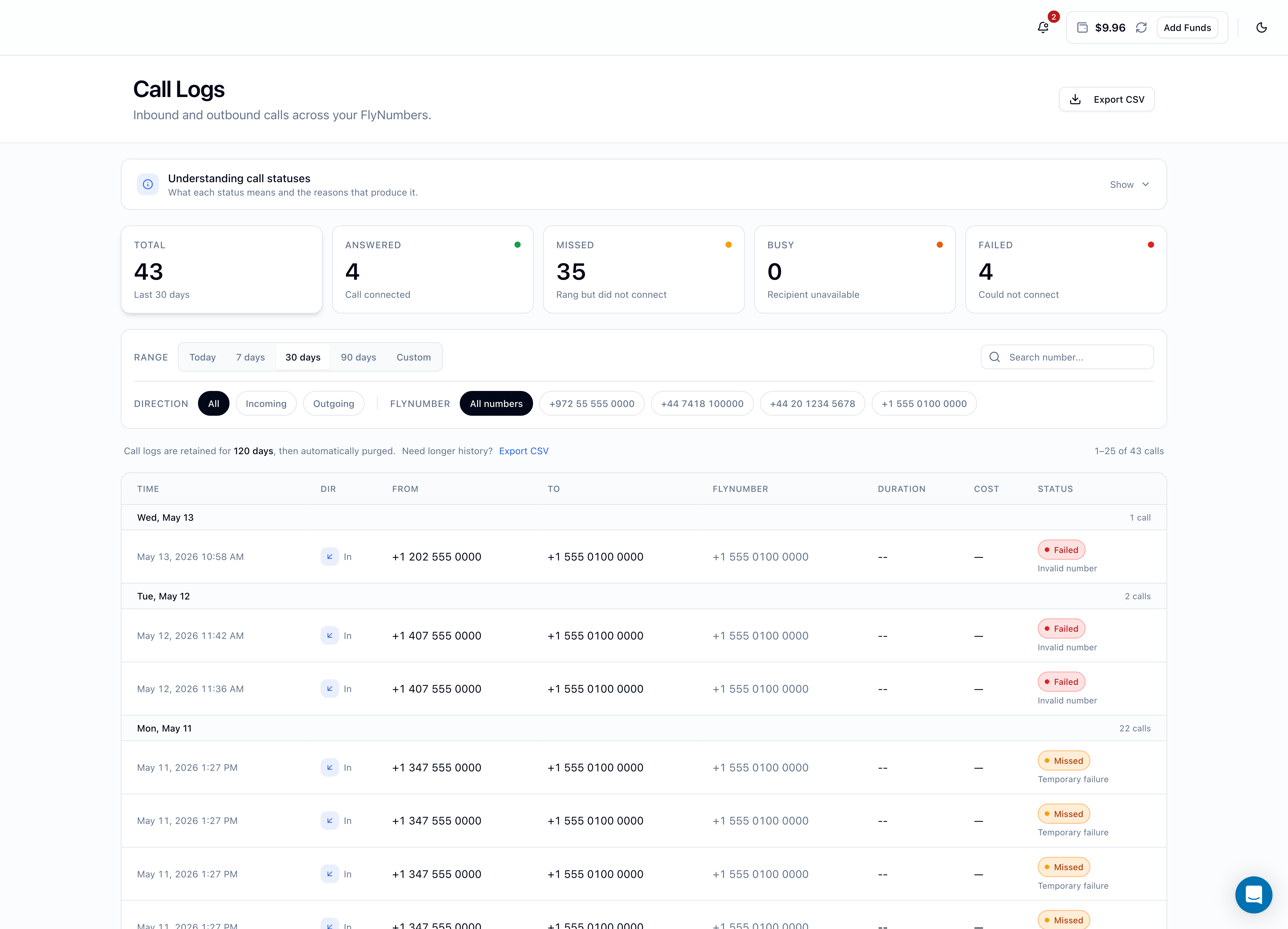
Stat tiles
Five tiles across the top — Total, Answered, Missed, Busy, Failed — show counts for whatever date range and filters are currently applied. Click any of the four status tiles to filter the list to just that status; click again to clear. The Total tile reflects whatever range is active (e.g. "Last 30 days") and isn't clickable.
Filters and presets
Three filter rows live above the table:
- RANGE — preset tabs for Today, 7 days, 30 days, 90 days, or Custom. Picking Custom reveals a From/To date picker. Range presets calculate from "now" each time you click them.
- DIRECTION — All / Incoming / Outgoing
- FLYNUMBER — All numbers, or filter to a specific FlyNumber. Only shows when you have more than one.
Plus a search field on the right of the RANGE row — type any digits, partial number, or text to match against From, To, or FlyNumber columns. The search debounces by 300ms and shows a small spinner while it's resolving.
The Custom date picker only lets you go back as far as 120 days. Anything older has been purged (see Retention below).
Retention
Call logs are retained for 120 days, then automatically purged. You'll see a small strip just above the table reminding you: "Call logs are retained for 120 days, then automatically purged. Need longer history? Export CSV"
For an audit trail or accounting record beyond 120 days, Export CSV once a month and keep the files locally — that's the only way to preserve older history. The export endpoint can be automated via Zapier, Make, or n8n if you'd rather not do it by hand.
What's in each call
The table has eight columns:
| Column | What it shows |
|---|---|
| TIME | When the call started — grouped under a day header (Today, Yesterday, or <Day, Month Date> with the count of calls that day) |
| DIR | Incoming arrow or Outgoing arrow with an "In" / "Out" label |
| FROM | The caller's number — formatted with country code; -- when caller ID was withheld |
| TO | The number that was dialed — for incoming, your FlyNumber; for outgoing, the destination |
| FLYNUMBER | Which of your FlyNumbers handled the call (only shown when you have more than one) |
| DURATION | How long the call was connected, mm:ss. -- if the call never connected |
| COST | What the call cost in USD with four-decimal precision (e.g. $0.0265). Em-dash (—) when nothing was charged |
| STATUS | A colored status pill (Answered, Missed, Busy, or Failed) with the reason stacked underneath when the call didn't connect cleanly |
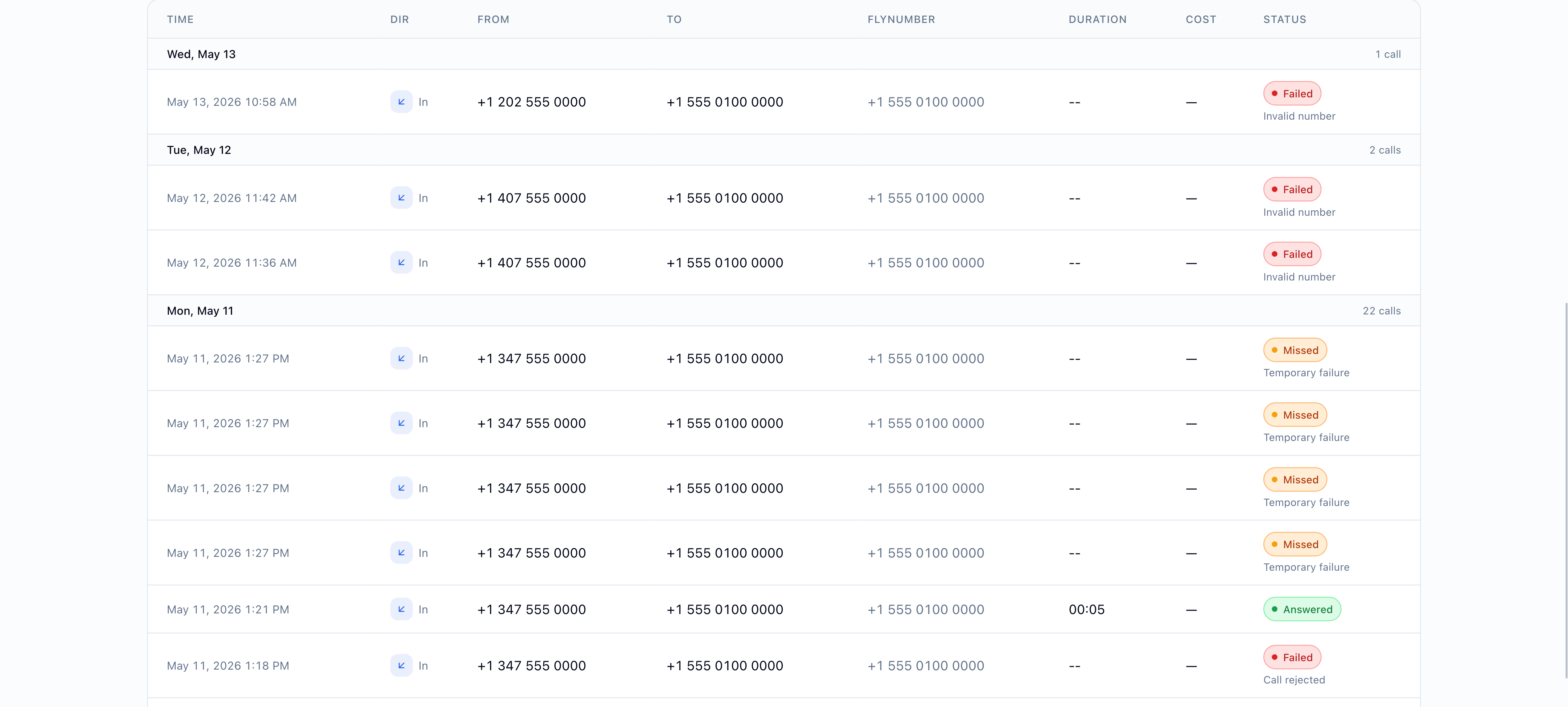
The new Status column stacks the colored status pill on top with the reason in muted text below — so at a glance you can scan a column of pills and see both "what happened" and "why." Answered calls usually show just the pill (no reason needed).
Understanding call statuses
Click Show on the Understanding call statuses card at the top of the page to expand the in-app legend — a four-column reference covering every status the system can return.
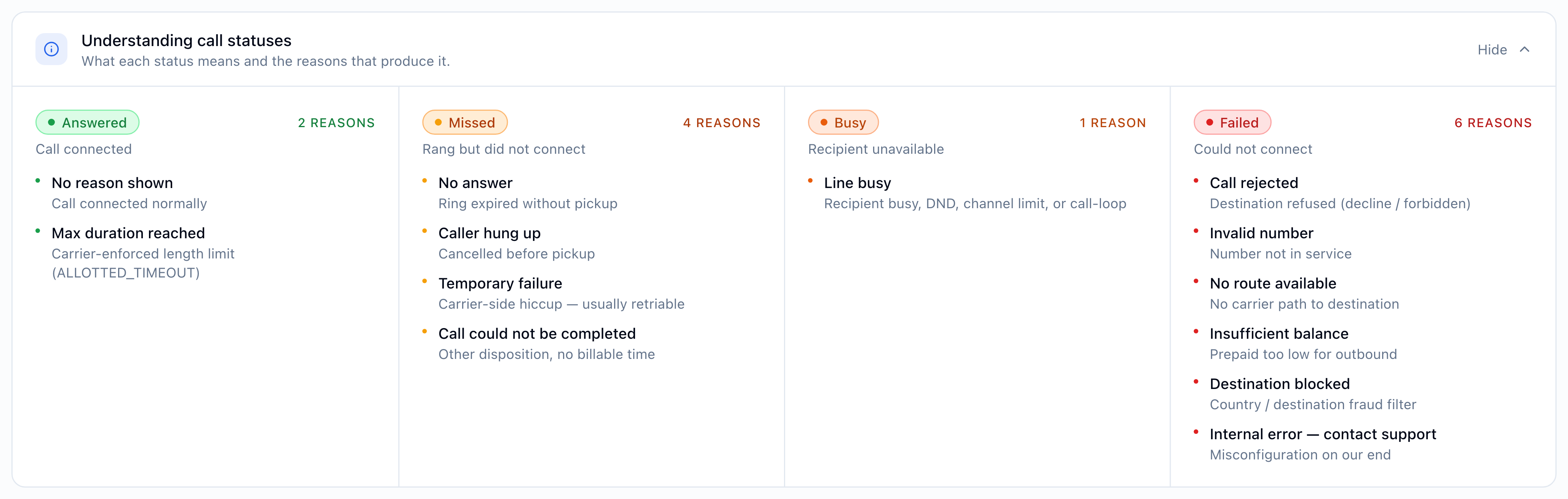
The legend lives in the panel so you always have it close, but here's the canonical reference:
Answered (green) — call connected
| Reason | What it means |
|---|---|
| (no reason shown) | Call connected normally — most common success case |
| Max duration reached | The carrier or destination enforced a maximum call length and ended the call |
Missed (amber) — rang but didn't connect
| Reason | What it means |
|---|---|
| No answer | Rang the destination but nobody picked up before the ring timer expired |
| Caller hung up | The caller cancelled before the call connected |
| Temporary failure | Transient routing or network hiccup — usually clears on its own, retry the call |
| Call could not be completed | Catch-all when no specific cause came back |
Busy (orange) — recipient unavailable
| Reason | What it means |
|---|---|
| Line busy | Recipient busy, Do Not Disturb, hit its channel capacity, or call-loop prevention kicked in (you called your own FlyNumber from the number it forwards to) |
Failed (red) — could not connect
| Reason | What it means |
|---|---|
| Call rejected | The destination actively refused the call — blocklist, geographic blocking, or strict spam filter |
| Invalid number | Destination number isn't in service or doesn't exist |
| No route available | No carrier path exists to that destination from the calling number |
| Insufficient balance | Prepaid balance couldn't cover the per-minute rate — top up via Add Funds or enable auto-refill |
| Destination blocked | Destination is on a fraud or blocking list |
| Internal error — contact support | Something on our side misbehaved — open a ticket and we'll look |
Telecom routing often retries automatically when it sees a transient failure. If you see a burst of consecutive Missed / Temporary failure entries from the same caller within seconds, that's the upstream carrier retrying — not separate ring attempts on your side. Most of the time one of the later retries connects (you'll see an Answered row at the end).
Export to CSV
The Export CSV button in the page header (and the link inside the retention strip) downloads the filtered list as call-logs-YYYY-MM-DD.csv. The export honors every active filter — date range, direction, status tile selection, FlyNumber, and search term — so if you've narrowed to "Last 30 days, Outgoing, Failed only, FlyNumber +1 555 0100 0000", that's exactly what gets exported.
CSV columns:
Date · Direction · Status · Reason · From · To · FlyNumber · Forwarded To · Destination · Duration (s) · Cost ($) · Rate Type
A few columns are richer than the on-screen table:
- Forwarded To — the actual destination of an inbound call (phone number, SIP URI, or "Phone System")
- Destination — the carrier-level destination label (e.g.
US (Fixed/Landline),Mexico Mobile) - Rate Type —
Standard,Local,EU/EEA, orMetered— which per-minute rate applied - Duration (s) — seconds, not
mm:ss - Cost ($) — full precision (not rounded to 4 decimals)
Once a call is older than 120 days, it's purged from our database. If you need long-term records, export once a month and keep the CSVs locally (or pipe the export endpoint to Zapier / Make / n8n).
Mobile view
On narrow screens the page collapses to a clean stack:
- The stat tiles wrap to two columns
- Filter rows become a single Filters button that opens a bottom sheet (range presets, direction, FlyNumber, custom dates)
- The table becomes a card list — each call gets its own row with the timestamp, direction icon, From → To, duration, cost, and the same stacked status pill
Day separators stay above each day's group in the card list, just like on desktop.
How Call Logs relates to other panel pages
| If you're looking for… | Go to |
|---|---|
| Per-message log of SMS | SMS Charges |
| Every charge across all services | Transactions |
| Per-minute and toll-free rates | Rates → Voice |
| Configure forwarding for a number | Core Settings → Set Up Forwarding |
| Run the phone system | Phone System Guide |
Troubleshooting common failure patterns
A few patterns to keep an eye on:
- All inbound calls show as Failed / Call rejected. Your forwarding destination is rejecting calls. Common causes: VoIP credentials wrong or stale, IP not whitelisted, or the forwarding number's voicemail or blocklist. Verify the Set Up Forwarding configuration.
- Spikes of Missed / Temporary failure. Usually upstream carrier flakiness — if it persists for hours instead of clearing on its own, contact support.
- Outbound calls failing with Insufficient balance. Top up via Add Funds or enable auto-refill so it doesn't happen again.
- Outbound calls failing with Call rejected. The destination network or country is refusing calls from your route. Try a different route or destination; if a previously-working destination starts rejecting, contact support.
- Missing rows. Calls take a few seconds to land in the log after they end. Refresh the page; if a call is still missing after a few minutes, check the filters (range preset, direction, status tile, FlyNumber) — often a too-narrow filter is hiding it.
If your VoIP server has a firewall / IP whitelist, you can find the current FlyNumber IP ranges at flynumber.com/flynumber-ip-addresses. Outbound traffic from us to your endpoint always originates from those ranges.
Where to next
- Configure forwarding for a FlyNumber — Core Settings → Set Up Forwarding
- SMS charge log — SMS Charges in the panel
- Every payment and prepaid debit — Transactions
- Per-minute voice rates — Rates → Voice
- Why a renewal failed and what restoring costs — Grace and Restore
- Phone system call analytics — Phone System Guide → Call Analytics