Call Analytics
The Call Analytics section provides comprehensive insights into your call activity through detailed call records (CDRs) and performance statistics. This powerful tool helps you monitor call patterns, track key metrics, and optimize your phone system's performance.
Call Analytics is the in-phone-system reporting view, focused on phone-system call flows (routing path, queues, agents). For a per-FlyNumber log of every inbound and outbound call across your whole account, see Call Logs in the FlyNumber panel.
Call Analytics has four tabs:
| Tab | What it shows |
|---|---|
| Call History | One record per call — who called whom, wait and talk time, how the call ended, and any recording, voicemail, fax or note attached to it |
| Routing Attempts | One record per attempt the phone system made while routing a call — the place to look when a call failed and you want to see where it was sent |
| Call Statistics | Totals, answer rate, average durations and charts for the selected period |
| User Statistics | Inbound call offers and outbound calls per user, with answer rates and average times |
Dates and times in Call Analytics follow the time zone of the device you're using — if your laptop is on UTC+1, records are shown in UTC+1. The time range you pick is kept while you switch between Call History, Routing Attempts and Call Statistics, and resets when you leave Call Analytics.
Call History
The Call History tab lists every call detail record (CDR) the phone system has processed, one row per call.
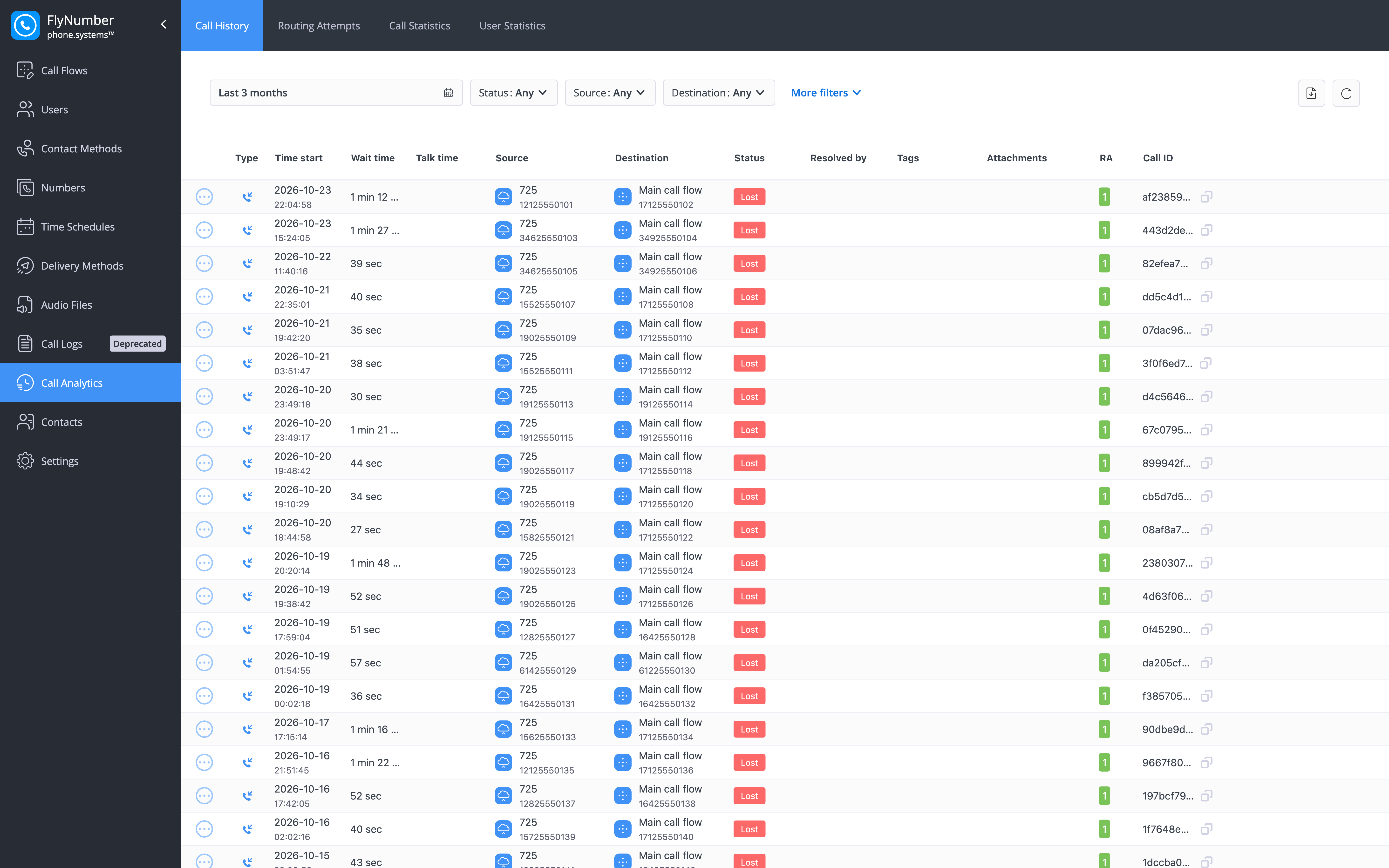
Filtering Call Records
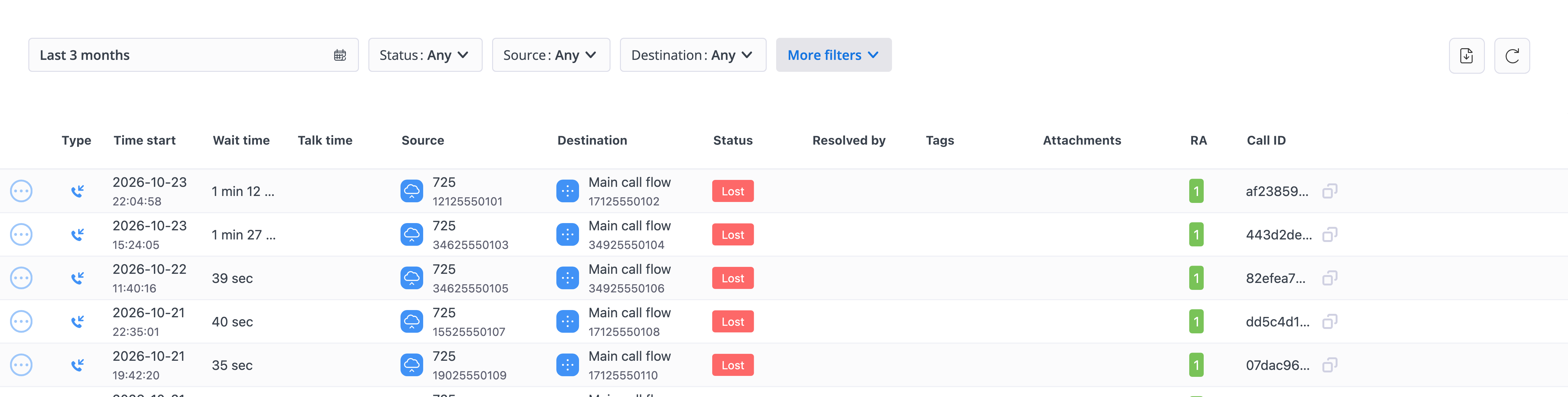
You can filter call records using various criteria:
| Filter | Description |
|---|---|
| Time range | A preset period (Today, Last 3 months, …) or a custom start and end date and time |
| Numbers | One or more phone numbers, separated by commas or spaces. Outbound calls are matched on the source number, inbound calls on the destination number |
| Status | Answered, Lost or Resolved |
| Type | Inbound, Outbound or Internal |
| Source | Source type and value — User or Incoming trunk. Picking User adds a Source user selector |
| Source number | Caller's number |
| Destination | Destination type and value — User, Call Flow, PSTN or Call Pick-Up. Picking User adds a Destination user selector; picking Call Flow adds a Call Flow selector |
| Destination number | Dialed number |
| Source contact method | Application, SIP Account, SIP Forwarding or PSTN Forwarding |
| Global tag | The system tag shared by every record belonging to the same call |
| Tags | One or more call tags assigned to the call |
| Has note / Has recording / Has voicemail / Has fax | Only records that carry that attachment |
Filters combine — with several applied, only records matching all of them are shown. Not every filter is on the bar by default: click More filters to add the ones you need.
Call Record Fields
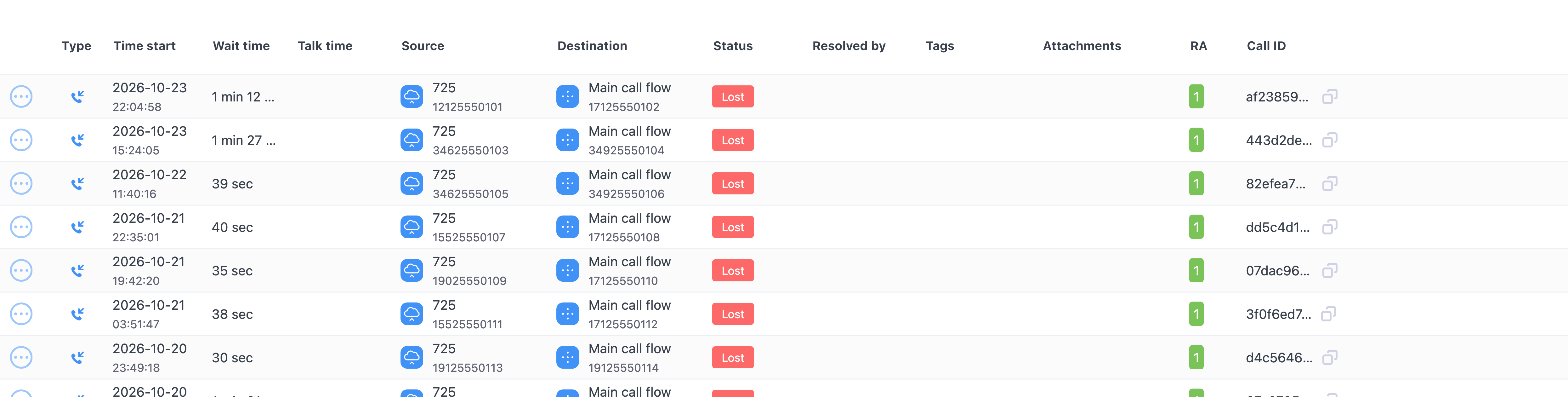
Each call record includes the following information:
| Field | Description |
|---|---|
| Type | Icon showing the call direction — inbound, outbound or internal |
| Time start | When the call was initiated |
| Wait time | Duration between call start and connection |
| Talk time | Duration of the connected call |
| Source | Where the call came from — see Type, Source and Destination |
| Source number | Caller's phone number |
| Destination number | Number the call was routed to |
| Destination | Where the call was routed — see Type, Source and Destination |
| End code | Reason the call ended — see End Codes |
| Status | Answered, Lost, Resolved or Processing — see Call Statuses |
| Resolved by | How and when a lost call was resolved |
| Tags | Call tags assigned to the record |
| Attachments | Icons for a note, recording, voicemail or fax — see Attachments |
| Routing attempt | Number of routing attempts made for the call |
| Call ID | Unique identifier for the call |
Type, Source and Destination
- Type — Inbound is a call received by one of your users, Outbound is a call a user placed, and Internal is a call between users dialed by internal number.
- Source — a two-line cell. For a call placed by a user it shows the user's name over the contact method they used (Application, SIP Account, …). For a call that arrived on a FlyNumber it shows System over Inbound trunk. A user who has since been removed shows as Deleted.
- Destination — also two lines. A call sent to a user shows the user's name over the contact method that rang (Application, PSTN Forwarding, …); a call sent into a call flow shows the flow's name over Call Flow; a call forwarded to an outside number shows that number; a call answered with the call pickup feature code shows Call Pick-up. The cell is empty when the system rejected the call (for example, a number that doesn't exist) and reads unknown when the user, flow or contact method has since been deleted.
Attachments
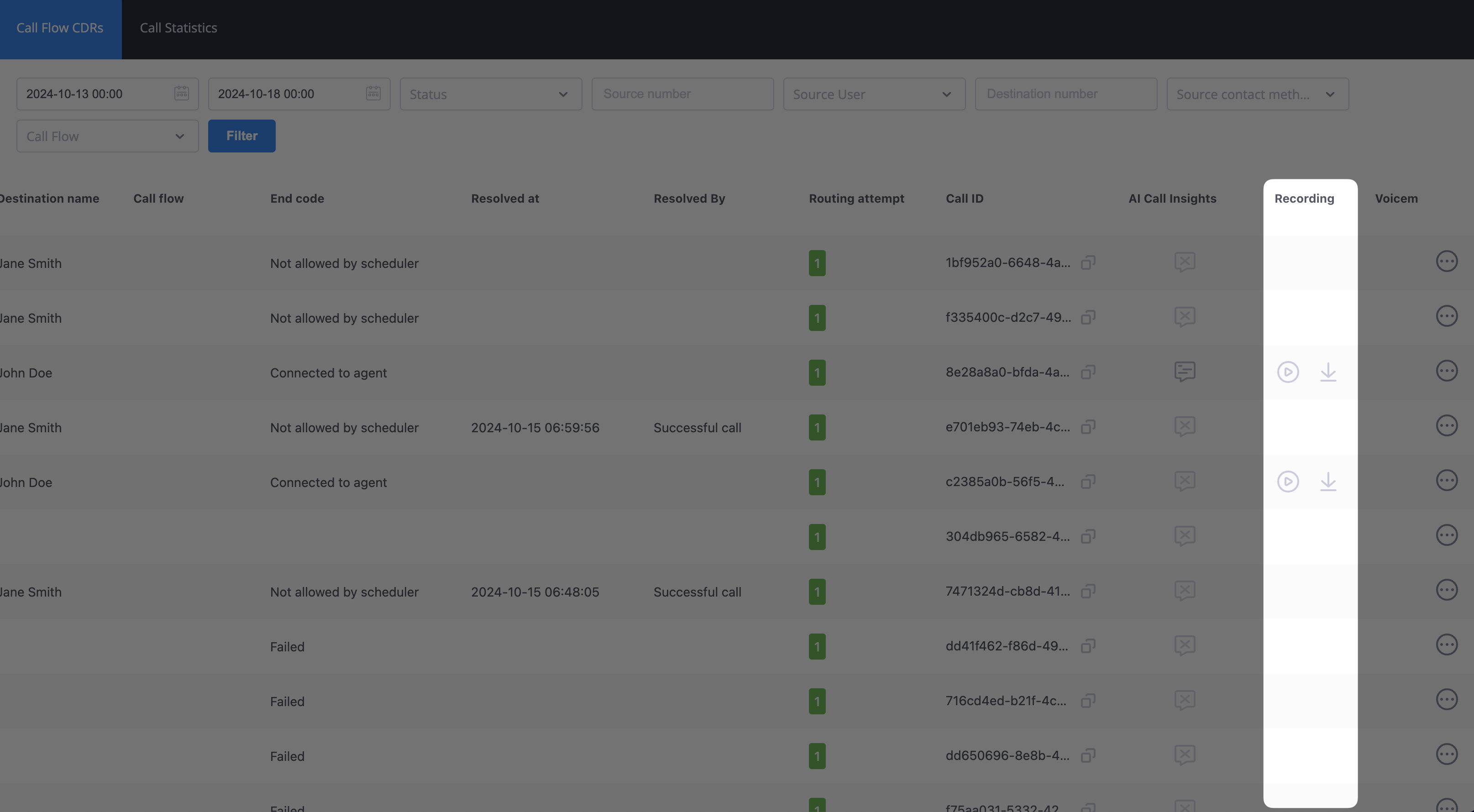
The Attachments column shows an icon for each extra item tied to a call:
| Icon | What clicking it does |
|---|---|
| Recording (microphone) | Opens the Call Recording window, where you can play the recording and download the file |
| Voicemail | Opens the Voicemail window, with the same play and download controls |
| Fax | Downloads the fax document |
| Note | Opens the note saved on that call |
Recordings, voicemails and faxes appear in Call History only when a cloud storage integration is connected under Settings > Cloud Storage Integrations. Set up a delivery method as well if you want copies sent to you.
Call Statuses
The system classifies calls into four statuses:
- Answered: Call was successfully connected and parties had a conversation
- Lost: Call was not answered and remains unresolved
- Resolved: Previously lost call that was either:
- Successfully completed through a callback
- Manually marked as resolved
- Processing: A brief, temporary state while the system works out the final outcome of a call
End Codes
End codes provide specific reasons for call termination:
| End Code | Description |
|---|---|
| Connected to agent | Call successfully connected to a live agent |
| Waiting timeout | Caller waited too long and timed out |
| Disconnect from originator | Caller hung up before connection |
| Pick-up | Call was answered by recipient |
| Redirect | Call was forwarded to another destination |
| Redirect Failed | Call forwarding attempt failed |
| Not allowed by scheduler | Call redirected to voicemail by time schedule |
| User not available | Destination unreachable or unresponsive |
| Too many redirects | Excessive redirects caused failure |
| Failed | Generic failure without specific error |
| Channels Overload | System reached channel capacity limit |
| Account blocked | Account access is restricted |
| PSTN termination blocked | External calling is blocked |
| External calls not allowed | Outbound calling not configured |
| PSTN Termination error | External routing failure |
| PSTN Termination billing error | Payment-related call failure |
| Wrong Number | Invalid destination number |
Managing Lost Calls
Lost calls can be resolved in two ways:
1. Automatic Resolution
When you call back a number associated with a lost call and the callback connects to an agent, the system resolves the lost call on its own.
Automatic resolution occurs within a 72-hour window after the callback.
2. Manual Resolution
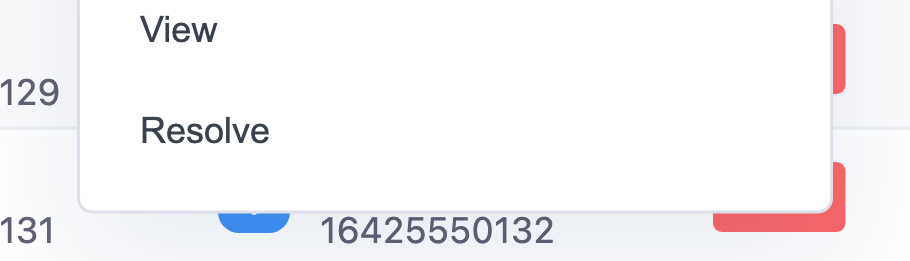
To manually resolve a call:
- Locate the lost call in your records
- Click the Actions button (⋮)
- Select "Resolve"
- Confirm the resolution
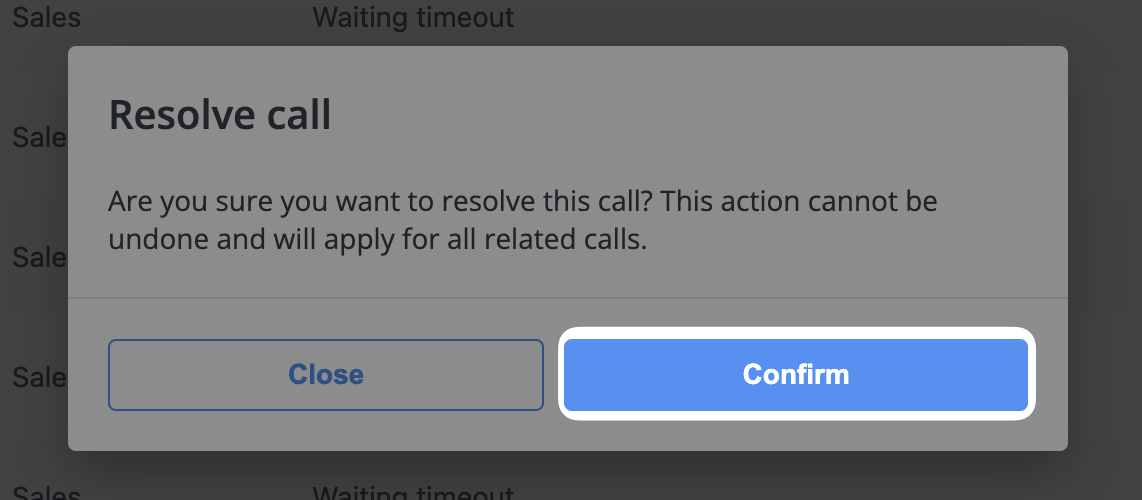
Resolution is permanent and applies to all related lost calls. Make sure you want to resolve the call before confirming.
Viewing a Single Record
To see one call on its own page rather than in the table, click the Actions button (⋮) on its row and choose View. The record view shows the same direction, timing, endpoints, end code, tags and attachments as the table, laid out for reading.
Downloading, Reloading and Paging
The icons in the top-right corner of the table and the controls under it let you work with the list as a whole:
| Control | What it does |
|---|---|
| Download | Saves the records that match your current filters as a CSV file. Narrow the filters first, then click the download icon and pick where to save |
| Reload | Refreshes the list without touching your filters |
| Page size | 50 records per page by default; raise it to 100 to see more at once. Use the arrows beside it to move between pages |
| Total Calls | Shown next to the page size: how many records match your current filters |
Routing Attempts
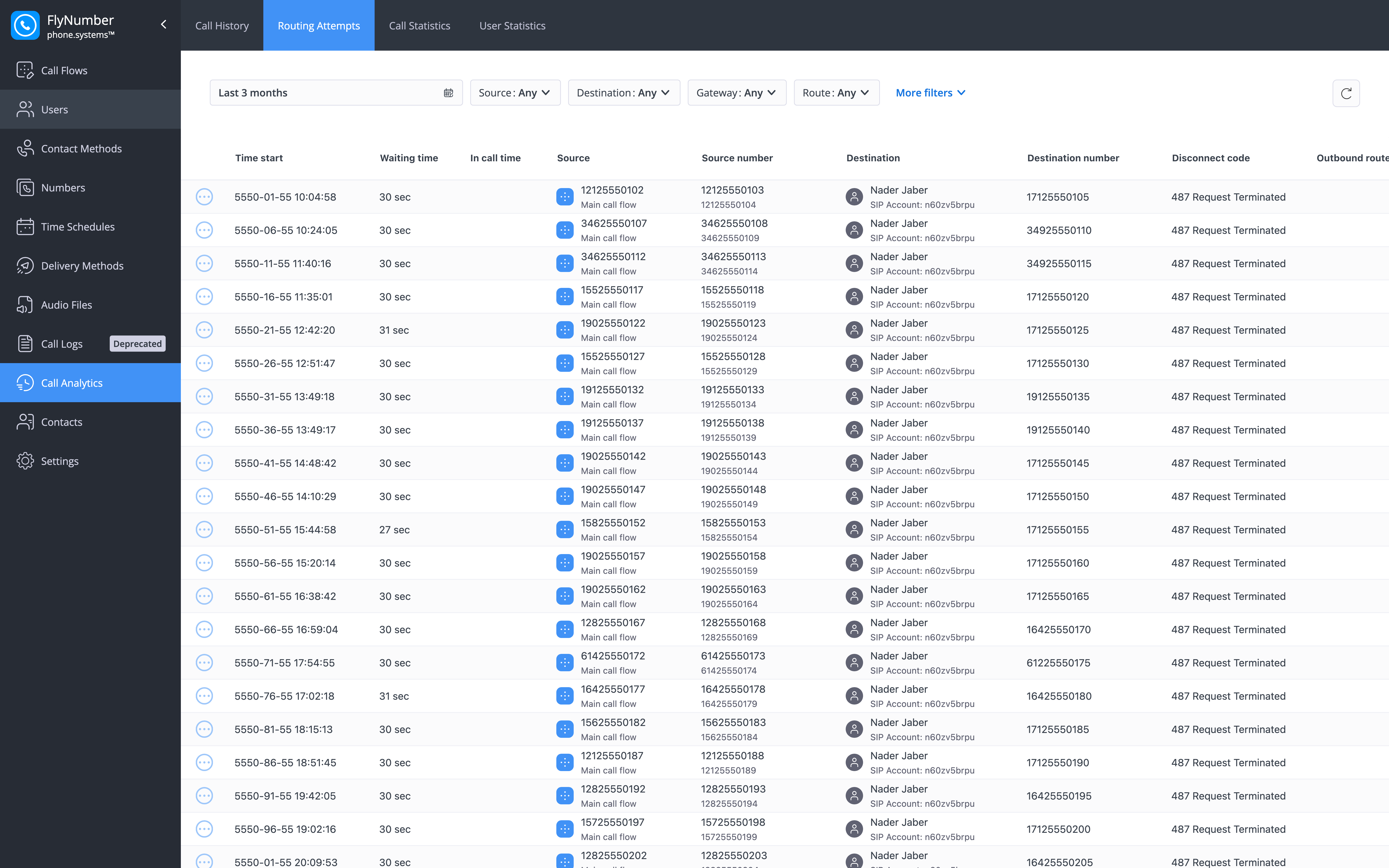
Where Call History shows one row per call, Routing Attempts shows one row for each attempt the phone system made while delivering that call — for example, ringing a Ring Group member, then forwarding to a PSTN number. It's the quickest way to find out where a failed or short call was sent and which disconnect code came back.
Filtering Routing Attempts
| Filter | Description |
|---|---|
| Time range | Preset period or custom start and end |
| Numbers | One or more numbers, comma- or space-separated; matched on the source number for outbound and the destination number for inbound attempts |
| Destination | Destination type, for example User or PSTN number |
| Gateway | The termination gateway the attempt used |
| Route | The outbound route the attempt used |
| Source number | Calling number |
| Destination number | Called number |
| Disconnect code | The code returned when the attempt ended |
| Global tag | The system tag shared by all attempts of the same call |
As in Call History, click More filters if a filter isn't on the bar.
Routing Attempt Fields
| Column | Description |
|---|---|
| Time start | When the routing attempt started |
| Waiting time | Time between the start of the attempt and the connection attempt |
| In call time | How long the call lasted for this attempt, if it connected |
| Source | What initiated the attempt, for example a Call Flow |
| Source number | Calling number used for the attempt |
| Destination | Where the attempt was sent, for example a user or a PSTN number |
| Destination number | The number dialed for the attempt |
| Disconnect code | Why the attempt ended |
| Outbound route | The route used for the attempt |
Tracing a Call Across Views
Open an attempt with Actions (⋮) > View. Besides the timing and participants, the details window has a routing section with two View links: Related call history opens Call History filtered to that call's Global tag, and Related routing attempts opens this tab filtered the same way. That lets you jump from a failed attempt straight to the call it belonged to without re-entering filters.
Reload, page size (50, up to 100) and paging work the same way as in Call History.
Call Statistics
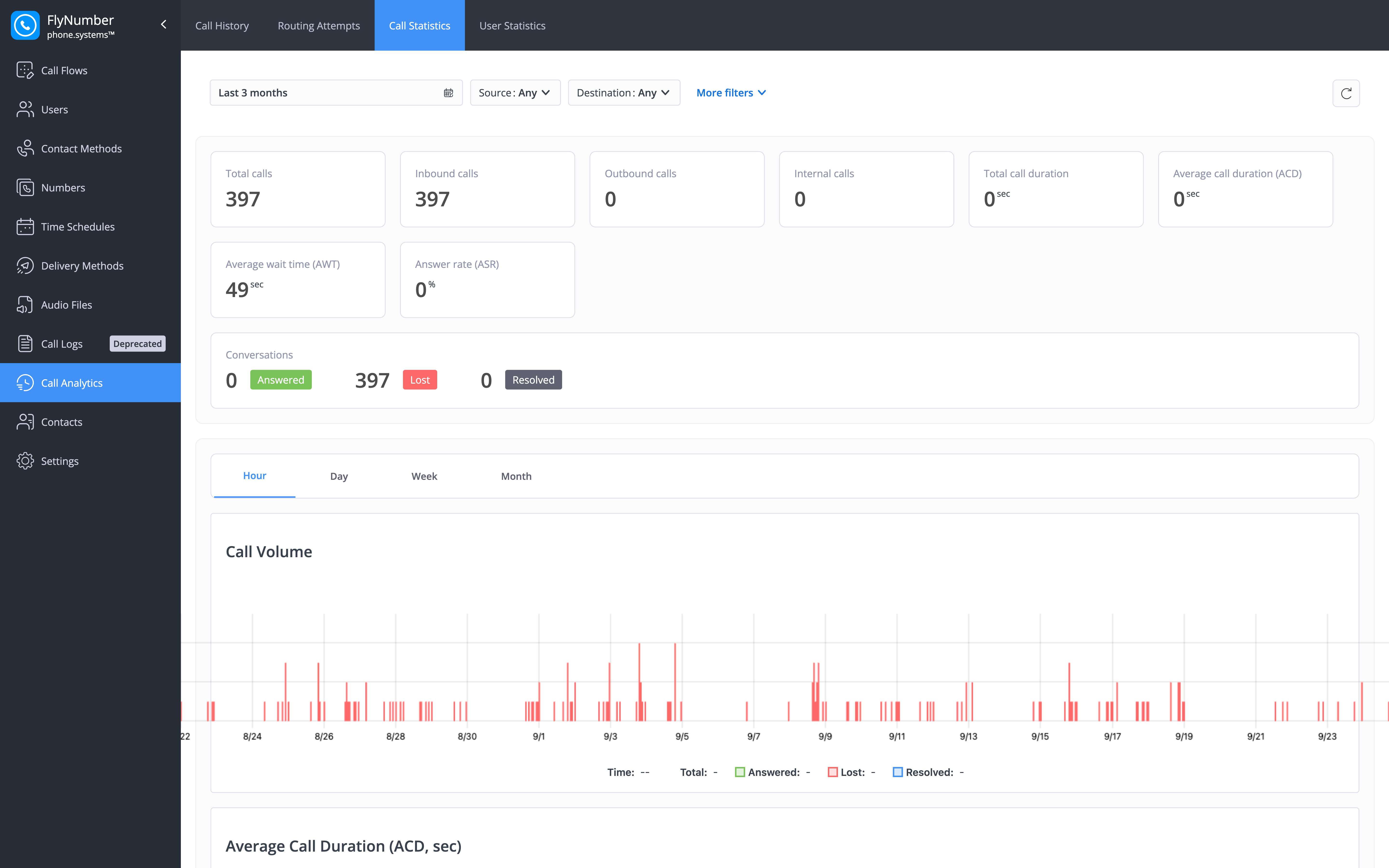
The Call Statistics tab provides a visual overview of your call activity and key performance metrics. Figures are based on the final outcome of completed calls, aggregated over the time range and filters you select — individual routing attempts aren't counted separately.
Filtering Statistics
| Filter | Description |
|---|---|
| Time range | Preset period or custom start and end |
| Numbers | One or more numbers, comma- or space-separated |
| Source | User or Inbound trunk, with a user or trunk selector |
| Destination | User, PSTN, Call Flow or Call Pick-up, with a user or call flow selector where relevant |
| Type | Inbound, Outbound or Internal |
| Source number | Caller's number |
| Destination number | Called number |
Key Metrics
The summary cards at the top of the page show, for the selected period and filters:
| Metric | Description |
|---|---|
| Total calls | All calls in the selection |
| Inbound calls | Calls received |
| Outbound calls | Calls placed by your users |
| Internal calls | Calls between users |
| Total call duration | Combined talk time of all calls |
| Average call duration (ACD) | Average talk time per call |
| Average wait time (AWT) | Average time callers waited before the call reached its outcome |
| Answer rate (ASR) | Percentage of calls that were answered |
Below the cards, the Conversations summary splits calls into Answered, Lost and Resolved — the same statuses used in Call History.
Call Volume Visualization
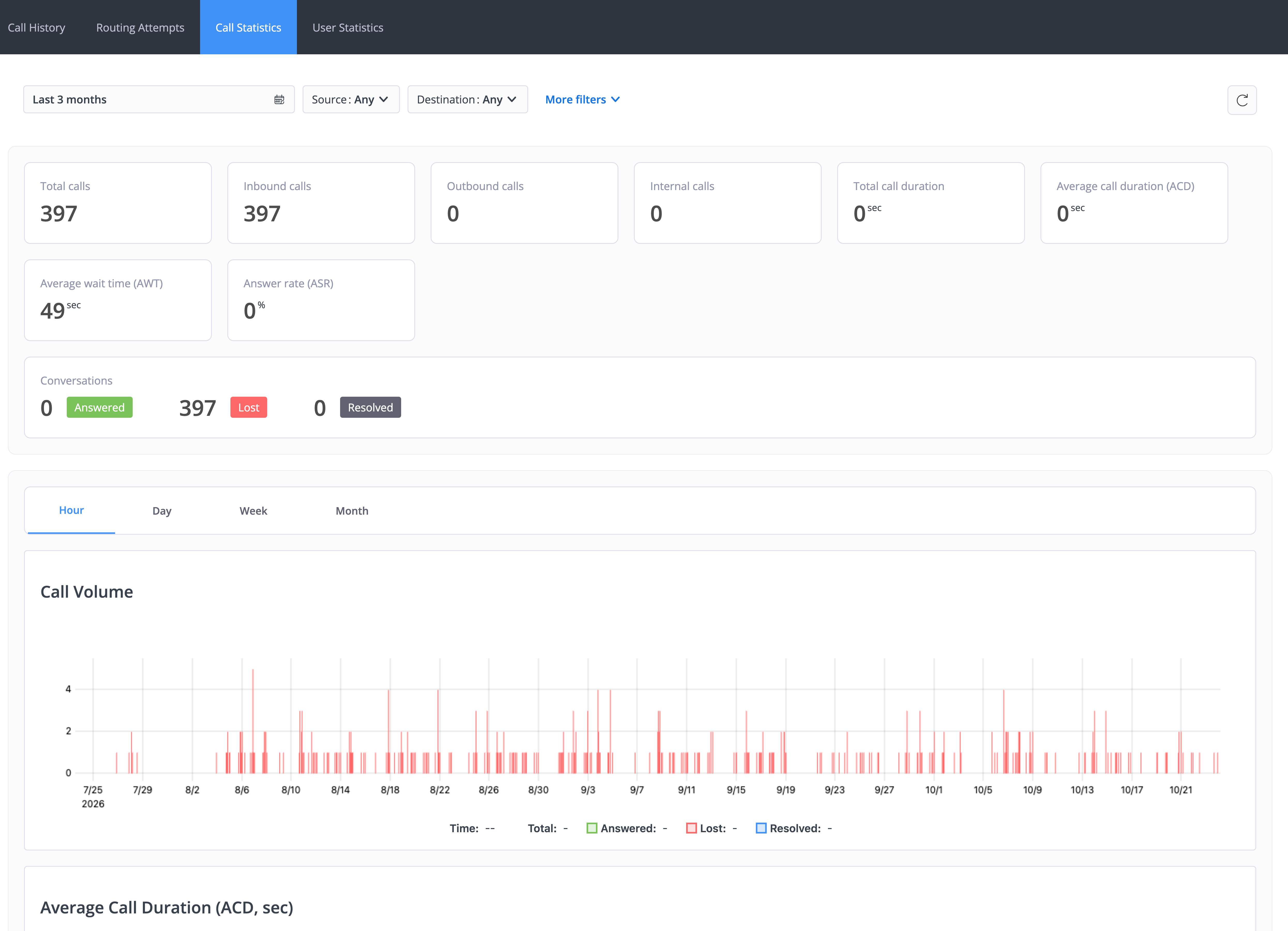
The charts show how the key metrics move over the selected period:
| Chart | Description |
|---|---|
| Call Volume | Number of calls per time bucket, stacked by outcome (Answered, Lost, Resolved) |
| Average Call Duration (ACD, sec) | How average talk time changes over time |
| Average Wait Time (AWT, sec) | How average wait time changes over time |
| Answer Rate (ASR %) | How the answer rate changes over time |
Use the Hour / Day / Week / Month tabs above the charts to change the grouping — all charts update together. To zoom in on part of a chart, click and drag across the range you want to inspect.
User Statistics
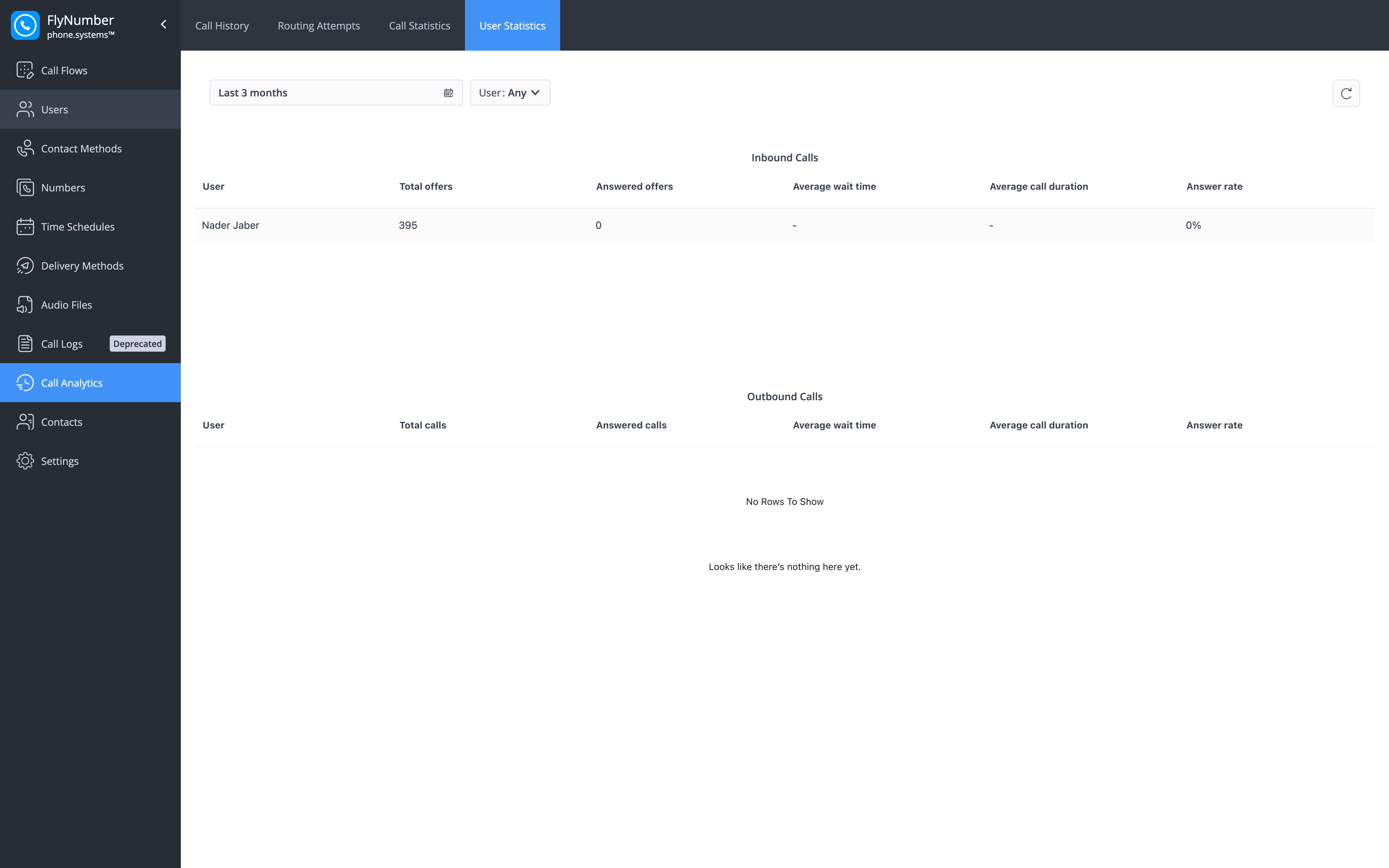
The User Statistics tab compares your users side by side: how many inbound calls each one was offered and answered, and how many outbound calls each one made. Inbound activity is counted in offers — an offer is logged each time the phone system tries to deliver a call to a user, whether or not they pick up — while outbound activity is counted in calls the user started.
Filtering User Statistics
| Filter | Description |
|---|---|
| Time range | Required. The range can cover at most the last 3 months |
| User | One or more users; leave it on Any to include everyone |
Both filters apply to the Inbound Calls and Outbound Calls tables at the same time.
Inbound Calls
| Column | Description |
|---|---|
| User | The user the calls were offered to |
| Total offers | Number of inbound calls offered to the user |
| Answered offers | Number of those offers the user answered |
| Average wait time | Average time callers waited before the offer reached its outcome |
| Average call duration | Average talk time per answered offer |
| Answer rate | Answered offers as a percentage of total offers |
Outbound Calls
| Column | Description |
|---|---|
| User | The user who placed the calls |
| Total calls | Number of outbound calls the user started |
| Answered calls | Number of those calls that were answered |
| Average wait time | Average time before the call reached its outcome |
| Average call duration | Average talk time per answered call |
| Answer rate | Answered calls as a percentage of total calls |
Best Practices
-
Regular Monitoring
- Check call statistics daily
- Review lost calls promptly
- Track performance trends
- Monitor key metrics
-
Lost Call Management
- Follow up on lost calls quickly
- Document resolution attempts
- Use automatic resolution when possible
- Keep resolution notes updated
-
Performance Analysis
- Monitor ASR for call quality issues
- Track ACD and AWT for service levels
- Analyze peak call times with the Hour and Day groupings
- Use Routing Attempts to see where failed calls were sent before changing a call flow
Use the filtering options to focus on specific areas of concern and identify patterns that may need attention.