Call Tags
Call tags are colored labels you define once and then attach to calls in the phone system app. They give your team a shared vocabulary for what a call was about, so a quick glance at the call list tells you whether something was a sales inquiry, a support request, or a call that still needs a callback.
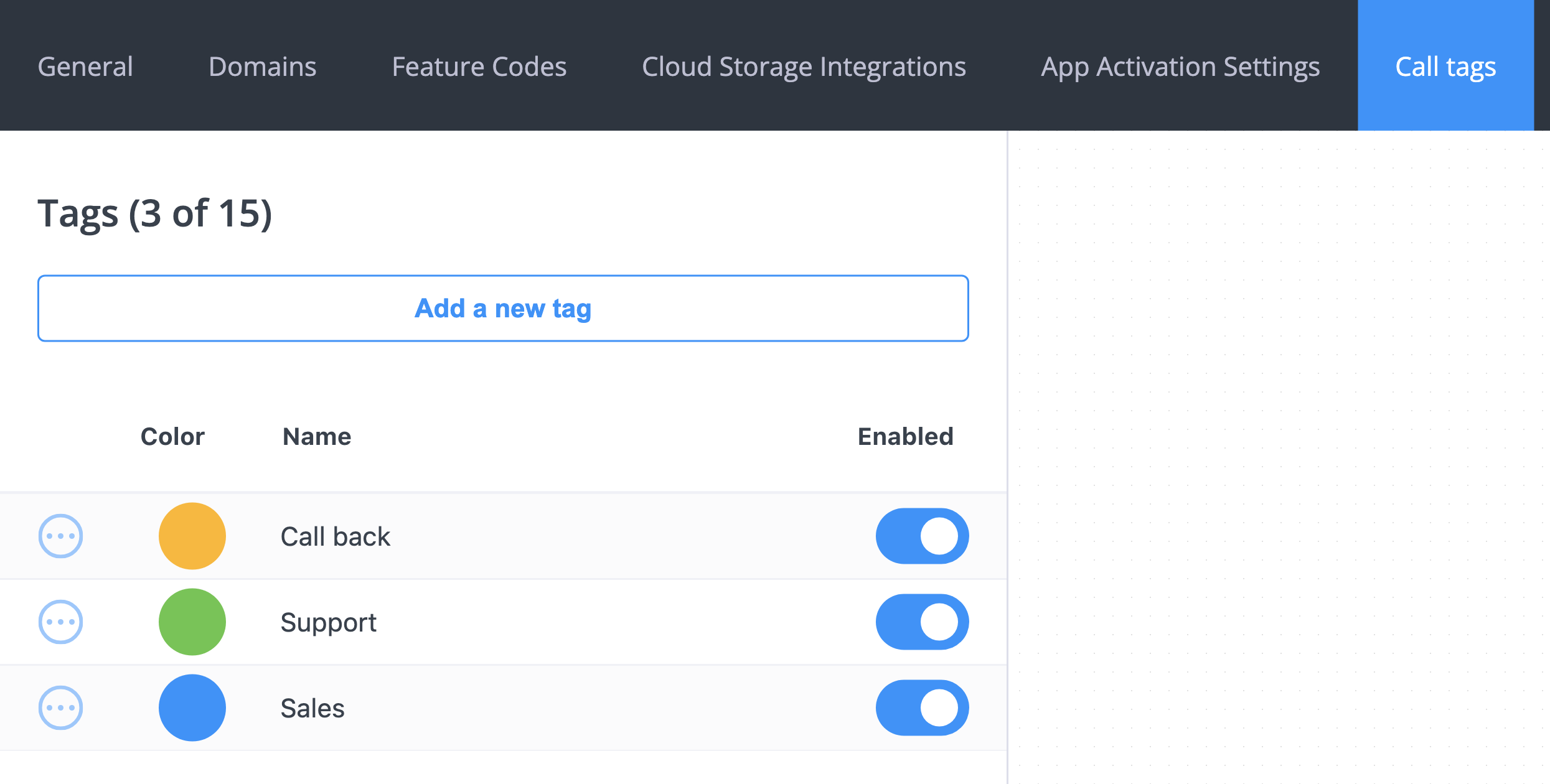
The Settings → Call tags page in the phone system panel is where the set of tags lives. Anyone using the phone system app picks from that same list, which keeps labels consistent across the whole team. Each phone system can hold up to 15 tags.
When Tags Help
| Situation | Example tags |
|---|---|
| Sorting calls by why someone called | Quote request, Billing question, Complaint |
| Splitting work between teams | Sales, Support, Accounts |
| Tracking what still needs doing | Call back, Send info, Escalated |
| Spotting priority calls in a long list | VIP, Urgent |
Because every tag has a color, tagged calls stand out in the app without anyone reading the label.
Creating a Tag
- In the phone system panel, open Settings → Call tags.
- Click Add a new tag.
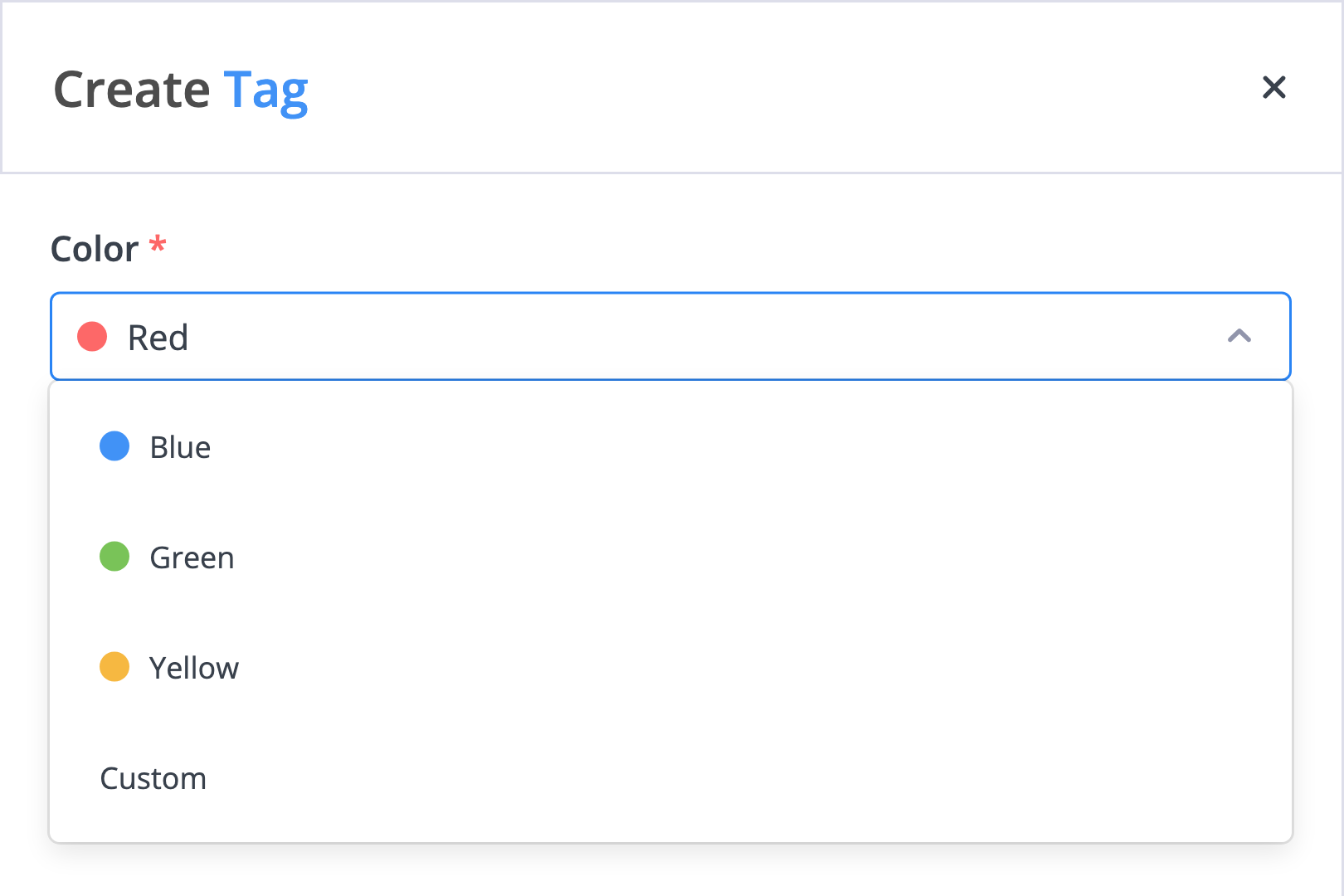
- Pick one of the preset colors (red, blue, green, or yellow), or choose Custom to set your own.
- Type the tag name in the Title field.
- Click Save.
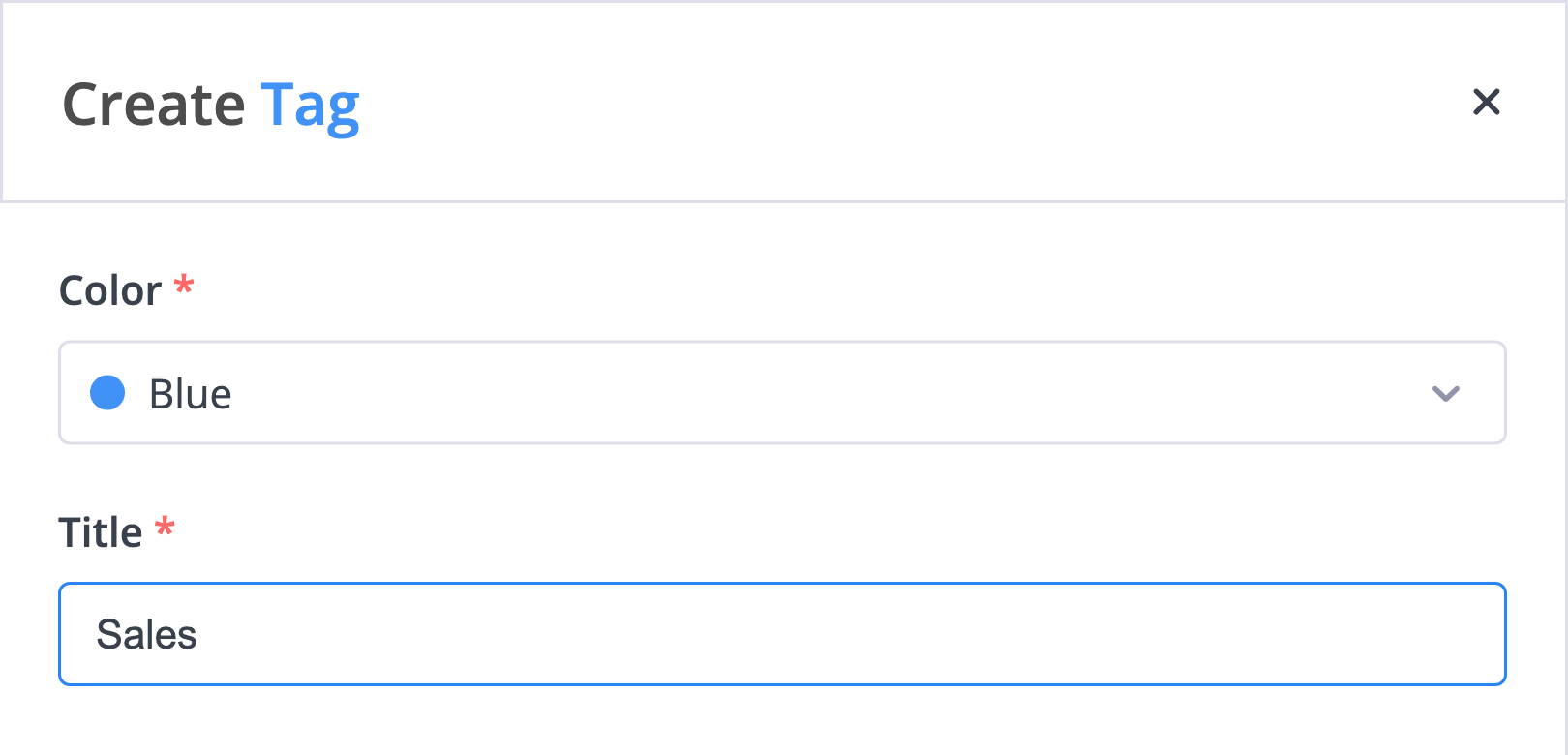
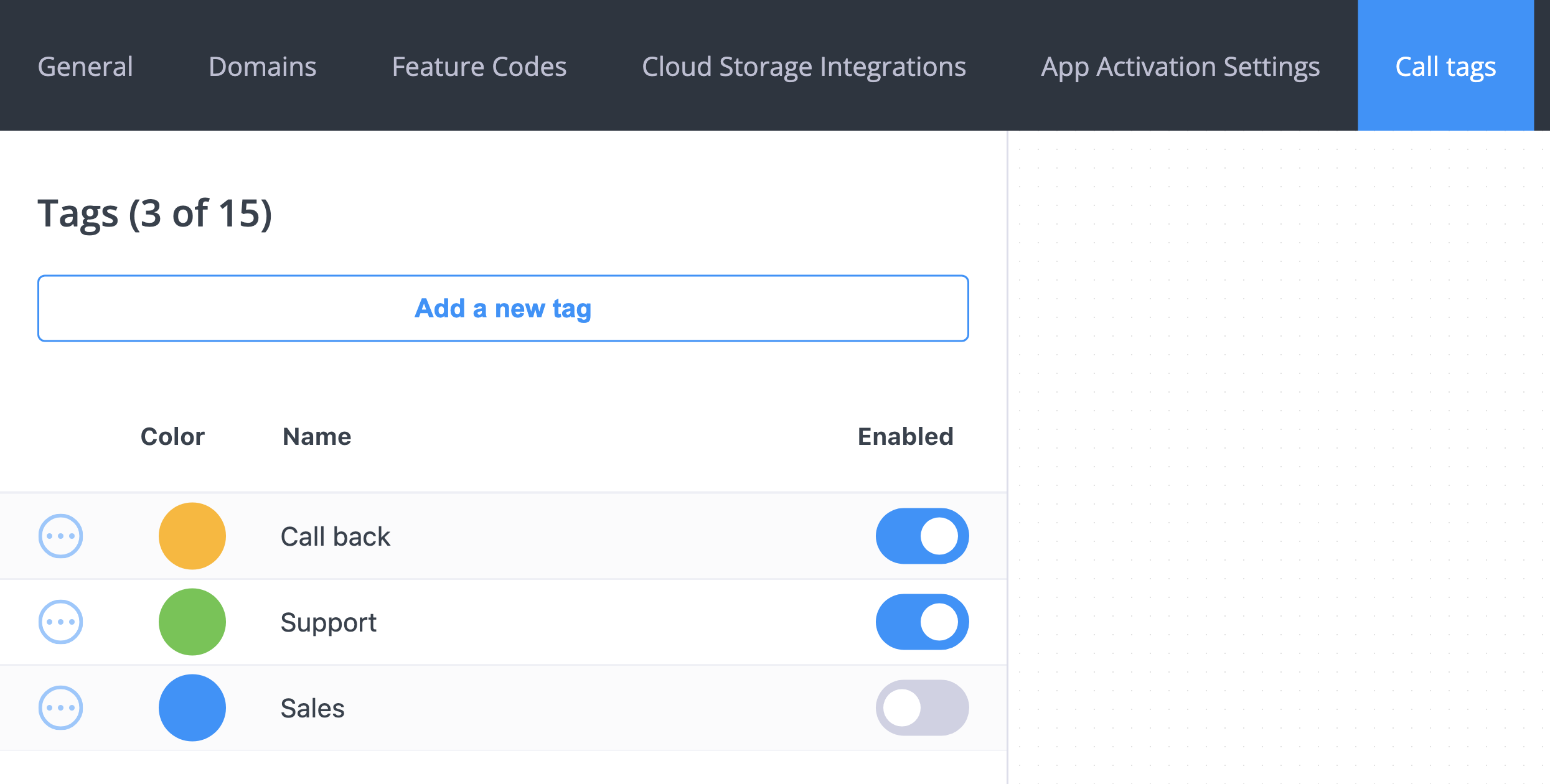
The new tag shows up in the list with its color, name, and whether it is currently enabled. From that point it can be applied to calls from the phone system app.
A handful of clear, distinct tags gets used. A list of twenty near-duplicates does not. Start with the categories you would actually filter or report on, and add more only when a real gap shows up.
Editing a Tag
- Go to Settings → Call tags and find the tag.
- Open Actions → Edit tag.
- Change the Color or Title as needed.
- Click Save.
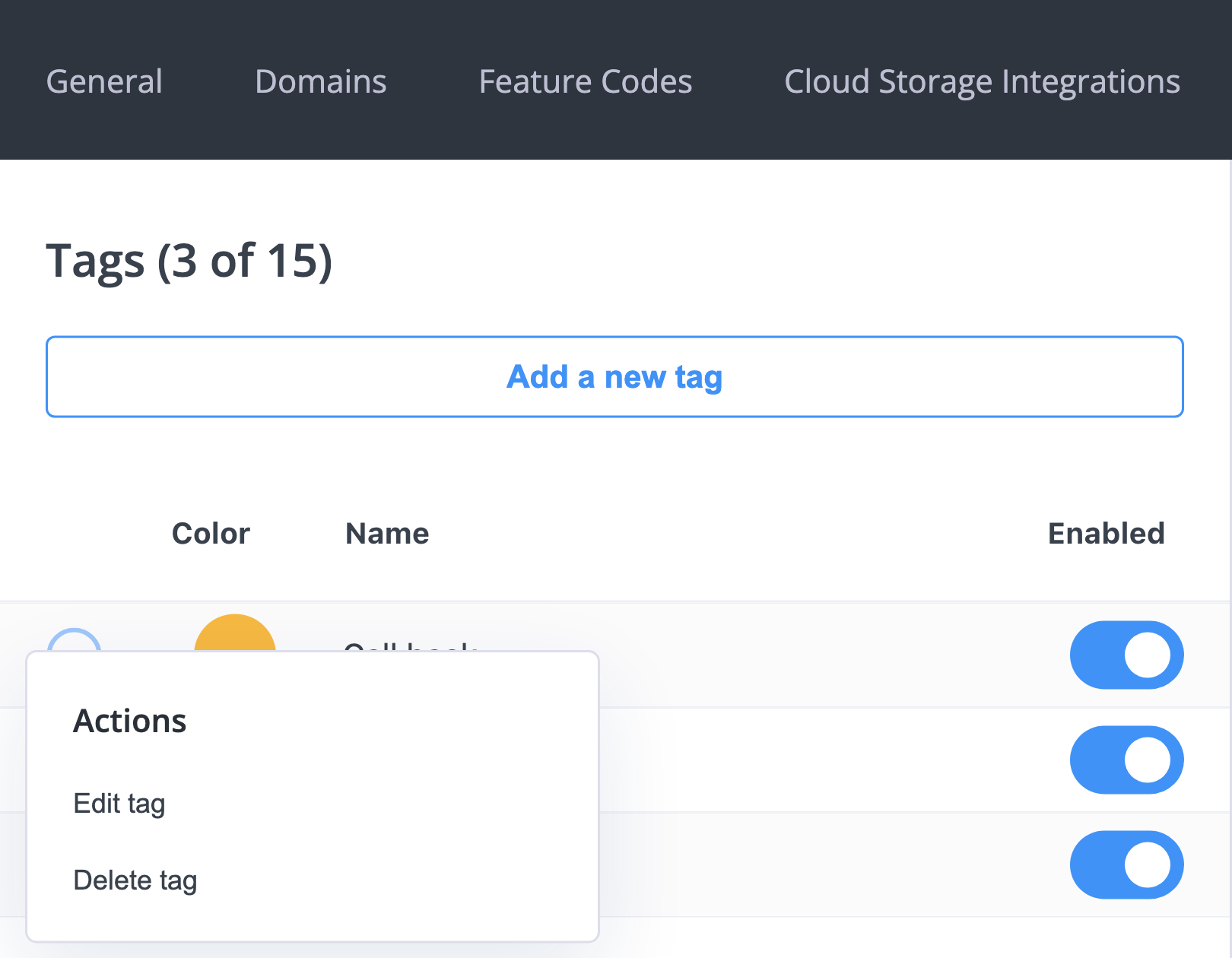
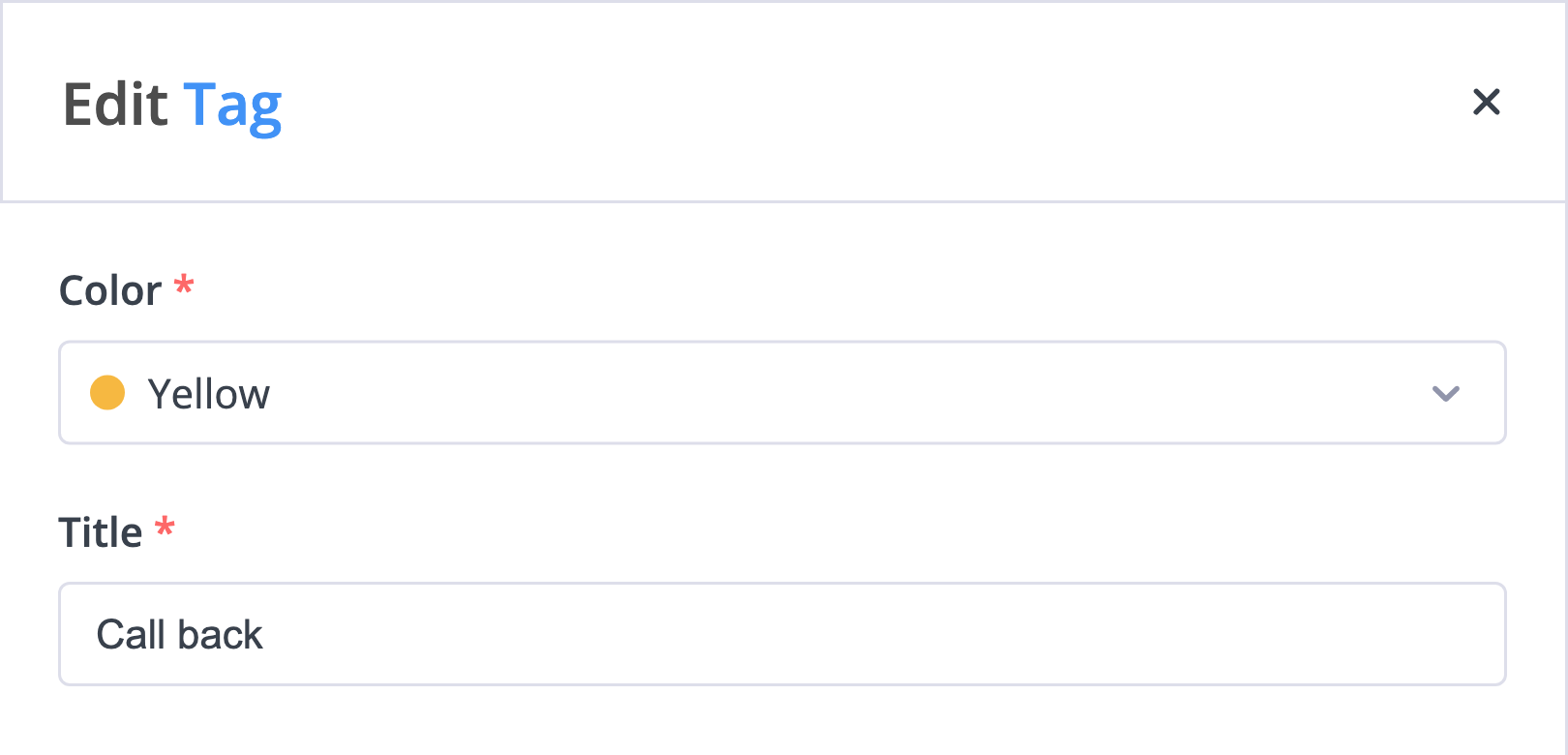
The change applies everywhere the tag is shown, including in the phone system app.
Turning a Tag Off Without Deleting It
Each row in the tag list has an Enabled toggle. Switch it off to stop the tag from being offered for new calls while keeping it, and any history that uses it, intact. Switch it back on whenever you need it again.
This is the right choice for seasonal or campaign tags you expect to reuse.
Deleting a Tag
- Go to Settings → Call tags and find the tag.
- Open Actions → Delete tag.
- Confirm in the pop-up.
A deleted tag disappears from the list and from every call it was previously attached to. If you only want to retire a label, disable it instead.
Related Pages
- Phone System App Overview — where tags are applied to calls
- Call History — reviewing past calls in the app
- General Settings — other phone-system-wide options