Contacts
The Contacts section allows you to manage contact information that can be used throughout your phone system. This centralized contact management system helps maintain consistent contact details across your organization and integrates with various features like CRM functionality and the phone system app.
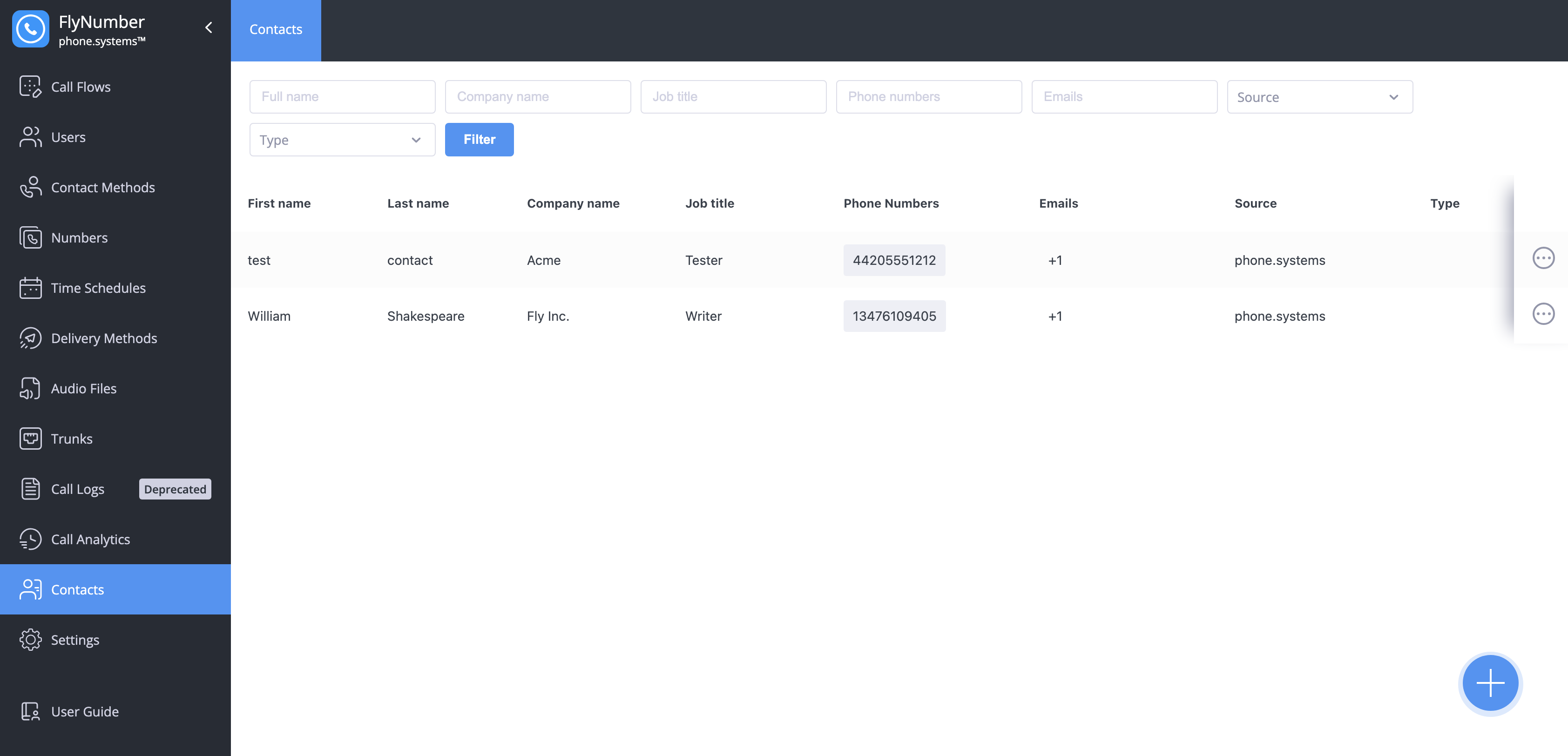
Managing Contacts
The contacts interface provides comprehensive contact management with filtering capabilities and detailed contact information:
| Field | Description |
|---|---|
| Full name | Contact's first and last name |
| Company name | Organization or business name |
| Job title | Contact's role or position |
| Phone Numbers | Associated phone numbers |
| Emails | Contact email addresses |
| Source | Origin of the contact information |
| Type | Contact classification |
Creating Contacts
To add a new contact:
- Click the + button in the bottom right corner
- Select "Create new"
- Fill in the contact details:
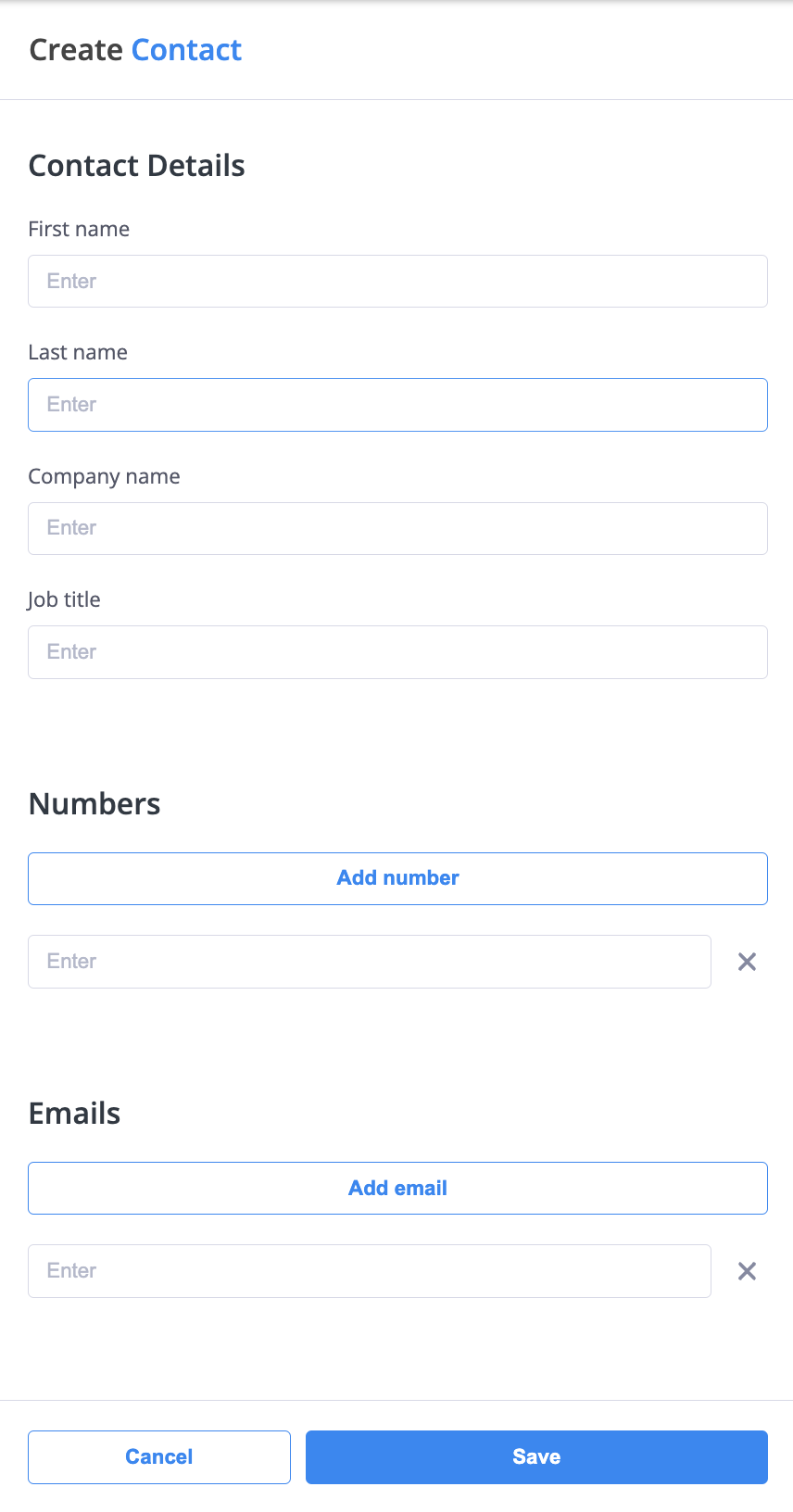
Required information includes:
- First name
- Last name
- Company name (optional)
- Job title (optional)
- Phone numbers
- Email addresses
You can add multiple phone numbers and email addresses for each contact by clicking the "Add number" or "Add email" buttons.
Editing Contacts
To modify an existing contact:
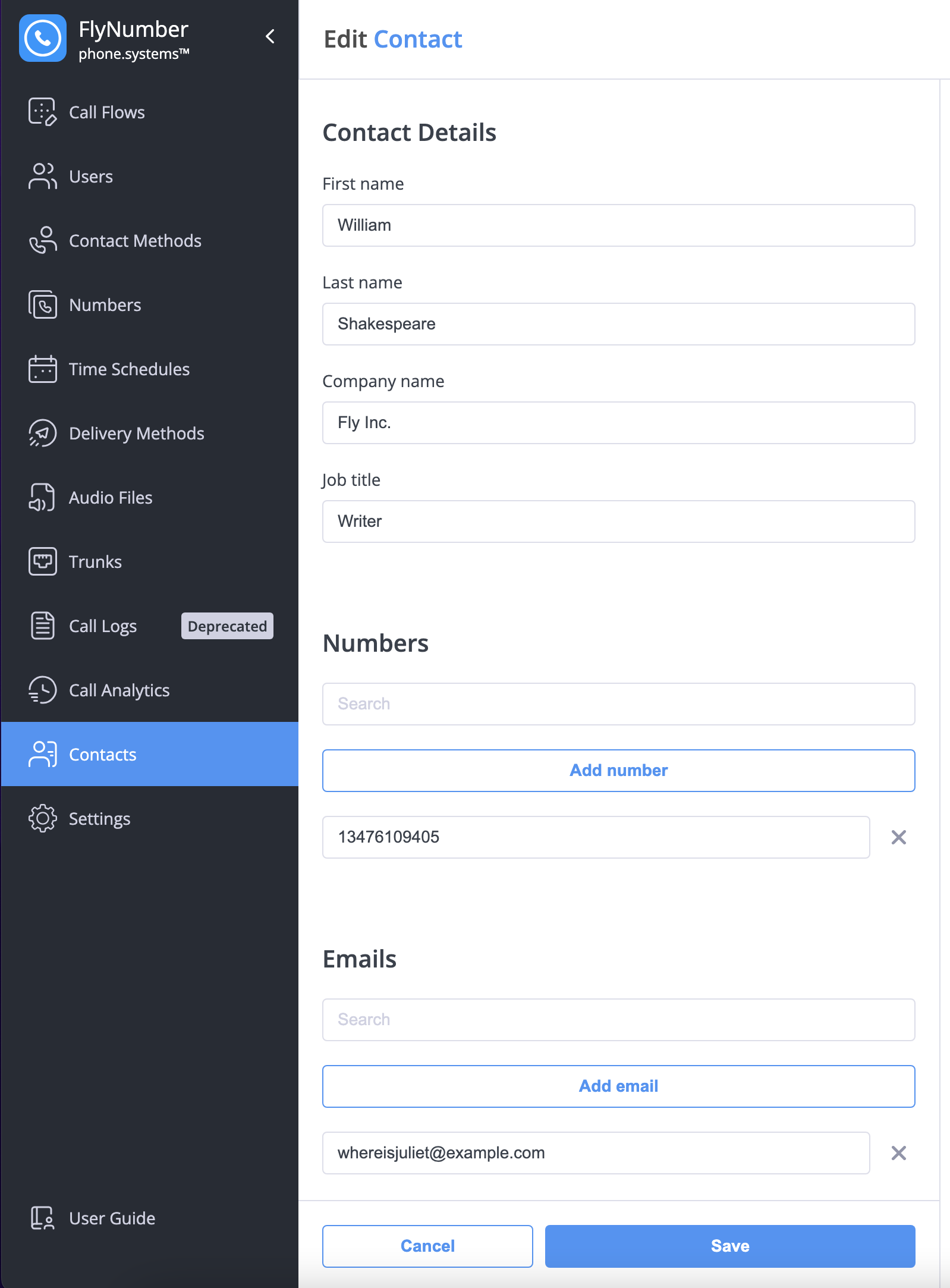
- Locate the contact in the list
- Click the Actions menu (⋮)
- Select "Edit"
- Update the necessary information
- Click Save to apply changes
Importing Contacts
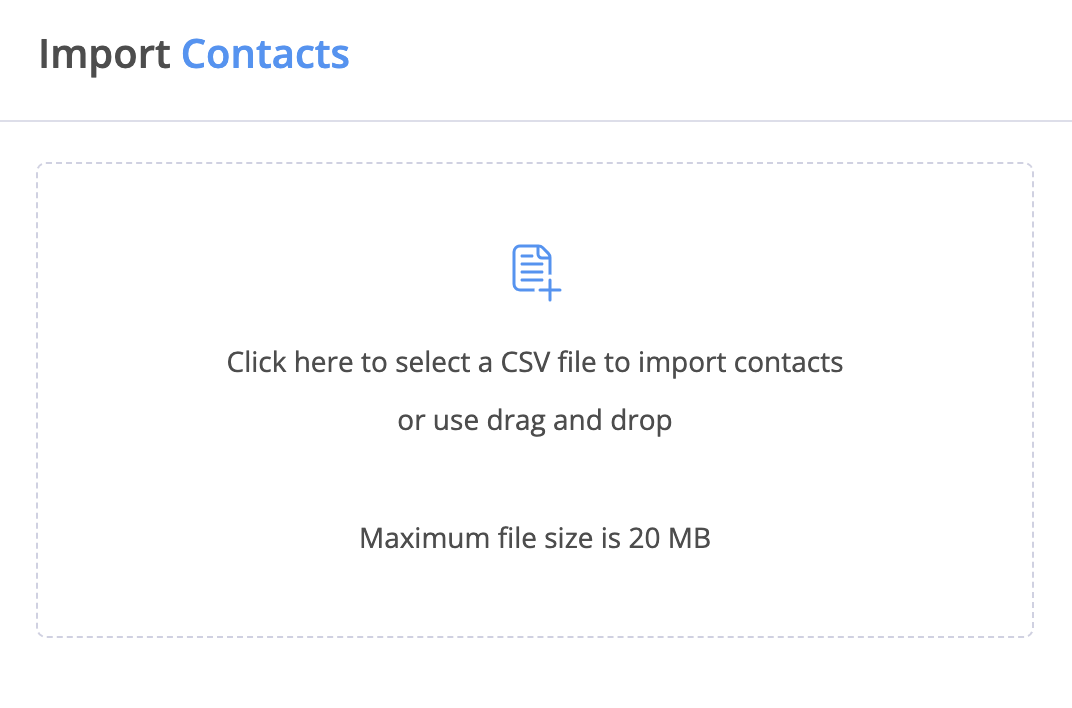
For bulk contact management, you can import contacts using a CSV file:
- Click the + button
- Select "Import CSV"
- Choose your CSV file or drag and drop it
CSV File Format
Your CSV file should follow this format:
| First name | Last name | Emails | Phone Numbers | Job title |
|---|---|---|---|---|
| Mike | Brown | Mike.Brown@sales.com | +1-555-123-4567 | Sales |
| Pete | Smith | Pete.Smith@support.com | +1-555-987-6543 | Support |
| Jane | Smith | Jane.Smith@customerservice.com | +1-555-555-1111 | Customer Service Representative |
| Sarah | Johnson | Sarah.Johnson@marketing.com | +1-555-222-3333 | Marketing Manager |
| John | Doe | John.Doe@engineering.com | +1-555-444-7777 | Lead Engineer |
The CSV file format supports only comma-separated values.
Import Confirmation
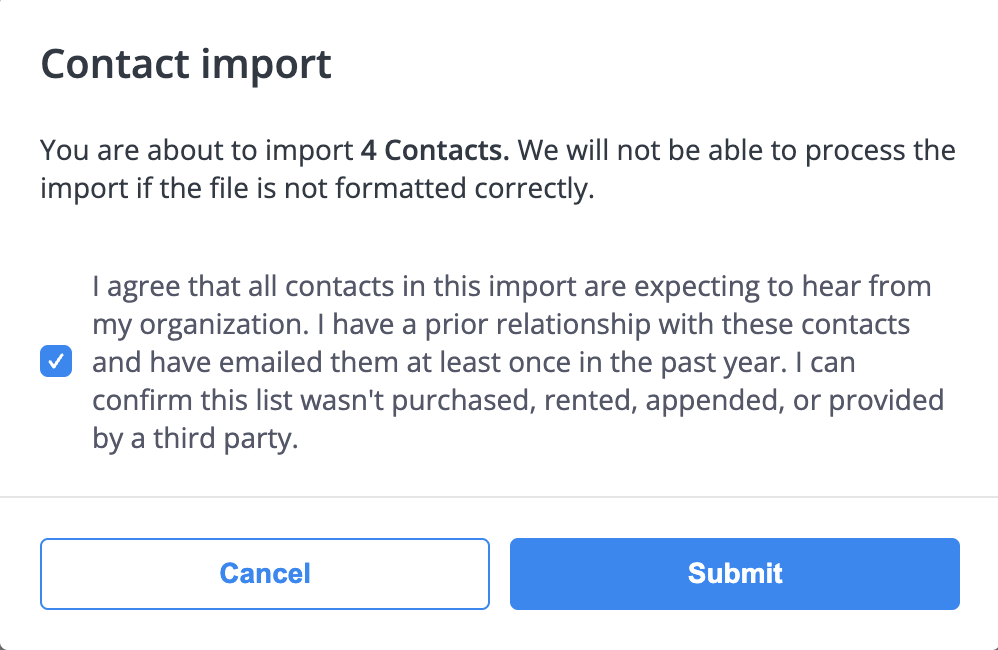
Before importing contacts, you must confirm that:
- All contacts are expecting to hear from your organization
- You have prior relationships with these contacts
- The contact list wasn't purchased or provided by third parties
Filtering Contacts
The filter bar at the top of the contacts list allows you to search by:
- Full name
- Company name
- Job title
- Phone numbers
- Emails
- Source
- Type
Click the Filter button to apply your selected criteria and narrow down the contact list.
Best Practices
-
Contact Organization
- Use consistent naming conventions
- Keep contact information up to date
- Remove outdated contacts regularly
- Document contact sources
-
Import Management
- Verify CSV formatting before import
- Review imported contacts for accuracy
- Update existing contacts when needed
- Maintain clean contact data
-
Data Quality
- Include complete contact information
- Validate email addresses and phone numbers
- Use standardized formats
- Regular data cleanup
When importing contacts, take time to properly format your CSV file to ensure a smooth import process. This will help maintain clean and consistent contact data in your system.
CRM Integration
CRM integration functionality is currently being implemented and will be enabled soon. Once available, it will provide enhanced contact management capabilities and deeper integration with your business processes.