SMS
FlyNumber's SMS page is a chat-style inbox at panel.flynumber.com/sms — pick a FlyNumber on the left, see conversations grouped by the other party, open a thread on the right, and send replies inline. This page covers how to use it day-to-day: composing messages, what error states mean, how inbound notifications work, and where to see costs.
For pricing details and segment math, see SMS Billing. For which numbers support SMS in which countries, see the coverage page.
The chat interface
The page is a three-pane chat layout on desktop, collapsing to a single-pane stack on mobile.
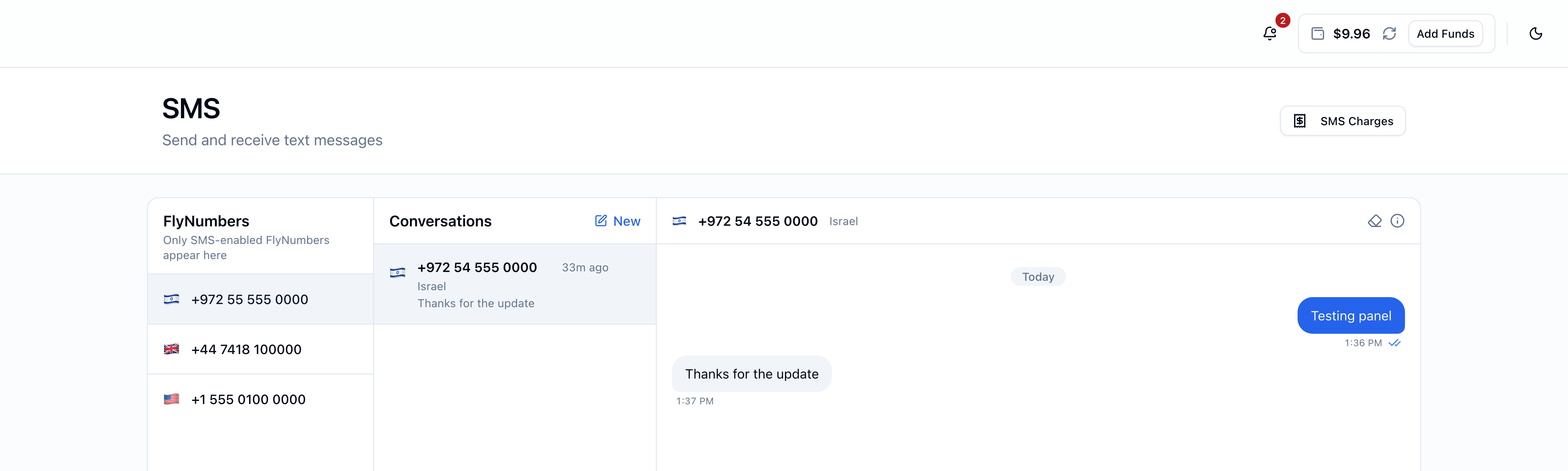
Left pane — FlyNumbers. Only your SMS-enabled FlyNumbers appear here. A number qualifies if its coverage capabilities include SMS in, SMS out, or both. Click one to load its conversations.
Middle pane — Conversations. Every distinct contact you've messaged or received a message from on the selected FlyNumber appears as a row, sorted by most recent activity. Each row shows the contact's country flag, formatted phone number, country name, last-message preview, and an unread-count badge for inbound messages you haven't seen.
The New pencil button at the top of this pane appears only when the selected FlyNumber supports outbound SMS — start a new conversation by entering an E.164 destination.
Right pane — Thread. The selected conversation opens here. Outbound messages are right-aligned with a blue background; inbound messages are left-aligned with a gray background. Day separators (Today / Yesterday / explicit date) break up consecutive days.
On mobile, only one pane shows at a time and a Back arrow in the header steps back through the stack.
Sending a message
Reply in an existing thread
Open a conversation and type into the composer at the bottom. Enter sends; Shift+Enter inserts a newline. The send button shows a spinner while the message is in flight.
Below the textarea, a live character + segment counter shows how the message will bill (see segment math). If you've typed an emoji or a non-Latin character, an amber "UCS-2" badge appears to flag the smaller segment limit.
Start a new conversation
Click New in the Conversations pane (or New Message in the empty-conversations state). The right pane swaps to a To: input. Type the destination in E.164 format — we auto-prepend + if you type 10+ digits without it. A formatted preview appears next to the input when the number is valid; "Invalid number" appears otherwise.
The send button stays disabled until the destination is valid and the message body is non-empty.
The composer sends from whichever FlyNumber is selected in the left pane. To send from a different one, click that FlyNumber first, then click New.
Message statuses
Each outbound message bubble shows a status icon next to its timestamp:
| Status | Icon | Meaning |
|---|---|---|
| Sending | spinning circle | We're handing off to the carrier |
| Sent | single check | The carrier accepted the message |
| Delivered | double check (blue) | The recipient's network confirmed delivery |
| Failed | red ⓘ | The send didn't go through — a reason is shown below the bubble and a Retry link appears |
The thread header has an info button (ⓘ) that toggles this legend in the panel itself:

We don't automatically retry failed messages — each retry would double-bill on a successful resend, so the choice is left to you.
Receiving SMS
Inbound messages arrive in real time — no refresh needed. When an SMS lands:
- The message appears in the relevant conversation thread (which is also moved to the top of the Conversations pane)
- An unread badge lights up on the conversation row
- An in-panel notification fires (the bell icon in the header), showing the sender and the first 160 characters
- An email notification is sent — either to your account email or to a custom address (see below)
Click any inbound notification to jump straight to /sms.
Email forwarding for inbound SMS
Every inbound SMS triggers an email by default. The email contains:
- Subject —
FlyNumber: New SMS from {sender} - From —
FlyNumber Notifications <notifications@mail.flynumber.com> - Body — the sender's number, the FlyNumber that received it, and the full message body (untruncated, even for long multi-segment messages)
- CTA — a "View in Panel" button linking back to
/sms
Where the email goes: by default, to the email address on your profile. You can override this with a single custom address at Notification Settings under the Incoming SMS card. Setting a custom address sends a verification link first; the new address only becomes active after you click that link.
The override is account-wide — it applies to inbound SMS on all your FlyNumbers. There's no per-number custom email at the moment.
Toggle the Email switch off for the Incoming SMS category at Notification Settings. The in-panel notification still fires; no email is sent.
Error messages
Errors show as toasts at the bottom of the screen. The exact messages you'll see:
| Situation | Toast message |
|---|---|
| Prepaid balance can't cover the send | "Insufficient prepaid balance" |
| Hit per-minute rate limit (5 sends/min) | "SMS rate limit exceeded — max 5 per minute. Please wait." |
| Hit per-hour rate limit (30 sends/hour) | "SMS rate limit exceeded — max 30 per hour. Please wait." |
| Hit daily spend cap ($50/day) | "Daily SMS spend limit reached ($50.00). Resets in 24 hours." |
| Selected FlyNumber doesn't support outbound | "This number doesn't support outbound SMS" |
| FlyNumber isn't in an active state | "Number must be active to send SMS" |
| Upstream carrier rejected the message | "Failed to send SMS" — with a specific reason below the failed bubble |
The most common upstream rejection reasons appear inline on the failed bubble:
- Destination not supported — we don't have a route to that country/destination from this FlyNumber
- Message too long — over the carrier's accepted byte limit (rare; typically only on long UCS-2 messages)
- Unsupported characters — the recipient's network rejected a character in the body
- Try again later — a transient upstream error; just retry
Outbound SMS to United States destinations isn't available yet — a send there fails with "We can't text this destination from this number right now." or a Destination not supported note on the bubble. Texting US numbers is coming soon and will run as A2P.
US FlyNumbers themselves can already text numbers outside the US. Keep in mind delivery abroad depends on the receiving network accepting texts from a US sender — some carriers do, some filter them — so results can vary by destination. More in SMS Information → Texting US numbers.
The 5/min, 30/hr, and $50/day caps reset on rolling windows. If you hit one, wait a moment and the window will free up. For higher throughput, this isn't the right product — see Outbound SMS personal-use policy.
SMS logs and history
The thread loads up to 50 most recent messages and keeps older history available — there's no manual purge.
For an audit-style log of every charge across all FlyNumbers, use the SMS Charges link in the page header (or go to /billing/sms-charges) — totals, message counts, segments, and per-message costs filterable by Inbound / Outbound.
Cleanup options:
- Delete a thread — click the trash icon on the conversation row (hover on desktop, always visible on mobile). Removes the contact + all messages.
- Clear messages in an open thread — click the eraser icon (next to the info button) in the thread header. Keeps the contact, wipes the messages.
What's not in /sms
A few things you might expect that aren't here:
- No contact book. Contacts are auto-derived from message history. The compose flow always asks for an E.164 number; there's no saved address book or pick-from-list dropdown.
- No search or date filter inside threads. History is chronological-only.
- No browser/web push. Inbound notifications surface as in-panel toasts (when the panel is open) and email — no system push.
- No outbound delivery email. You don't get an email when an outbound message is sent or delivered — just the bubble status icon in the panel.
Where to next
- Pricing and segment math — SMS Billing
- Charge log — SMS Charges
- Customize forwarding email — Notification Settings
- Outbound personal-use policy — SMS Billing → Personal use only
- Which numbers have SMS — coverage