Publish and Connect a Number
An agent answers calls once two things are true: a version of it is live, and a FlyNumber is connected to it. This page covers both, plus editing a live agent and deleting one.
Publish
- Save your changes. Publish is turned off while there are unsaved edits, and the bar reads Save your changes first.
- Click Publish in the bar at the bottom of the editor.
Publish sends the latest saved version. It needs an available balance of at least $10; if yours is lower, you'll see Add funds to publish: a balance of at least $10 is required. with an Add funds link. Publishing itself doesn't charge anything.

What happens after you click Publish
A message next to the button tells you where things stand:
| Message | What it means |
|---|---|
| Published — this version is live. | Your account is approved, so the version went live straight away |
| Published. It goes live once your account is approved. | Your account isn't approved yet. The version waits and goes live automatically as soon as your account is approved; you don't need to publish again |
| Published. It goes live within a few minutes. | The version is being switched on in the background |
| This version is already live. | Nothing has changed since your last publish |
When a version goes live, you get a notification (by email and in the panel, under the AI voice agents category):
- Your AI voice agent is live if numbers are already connected to the agent. From then on, those numbers use the new version.
- Your AI voice agent is approved if no number is connected yet, with a reminder to connect one.
Statuses
| Status | Meaning |
|---|---|
| Draft | Not published yet |
| Pending | Published and waiting to go live, usually because your account isn't approved yet |
| Live | Can take calls on any number connected to it |
| Suspended | Stopped by FlyNumber. It can't take new calls and Publish is turned off; the editor shows Suspended — contact support. You can still edit it |
Unpublished changes appears next to the status when there are edits that aren't live yet: saved but not published, or not saved at all.
Editing a live agent
Edit, Save and Publish again. Callers keep getting the current live version until the new one is published; after that, each connected number uses the new version from its next call. A call already in progress finishes on the version it started with.
Renaming the agent and the Settings on the Calls & limits tab apply right away without publishing.
Connect a number
Once the agent is live:
- Open My FlyNumbers in the sidebar and click the number.
- In the Call Handling card, select AI voice agent answers.
- In the Agent menu, choose the agent. Only live agents are listed; if you have none, the card says You have no live agents yet.
- Click Save Settings.
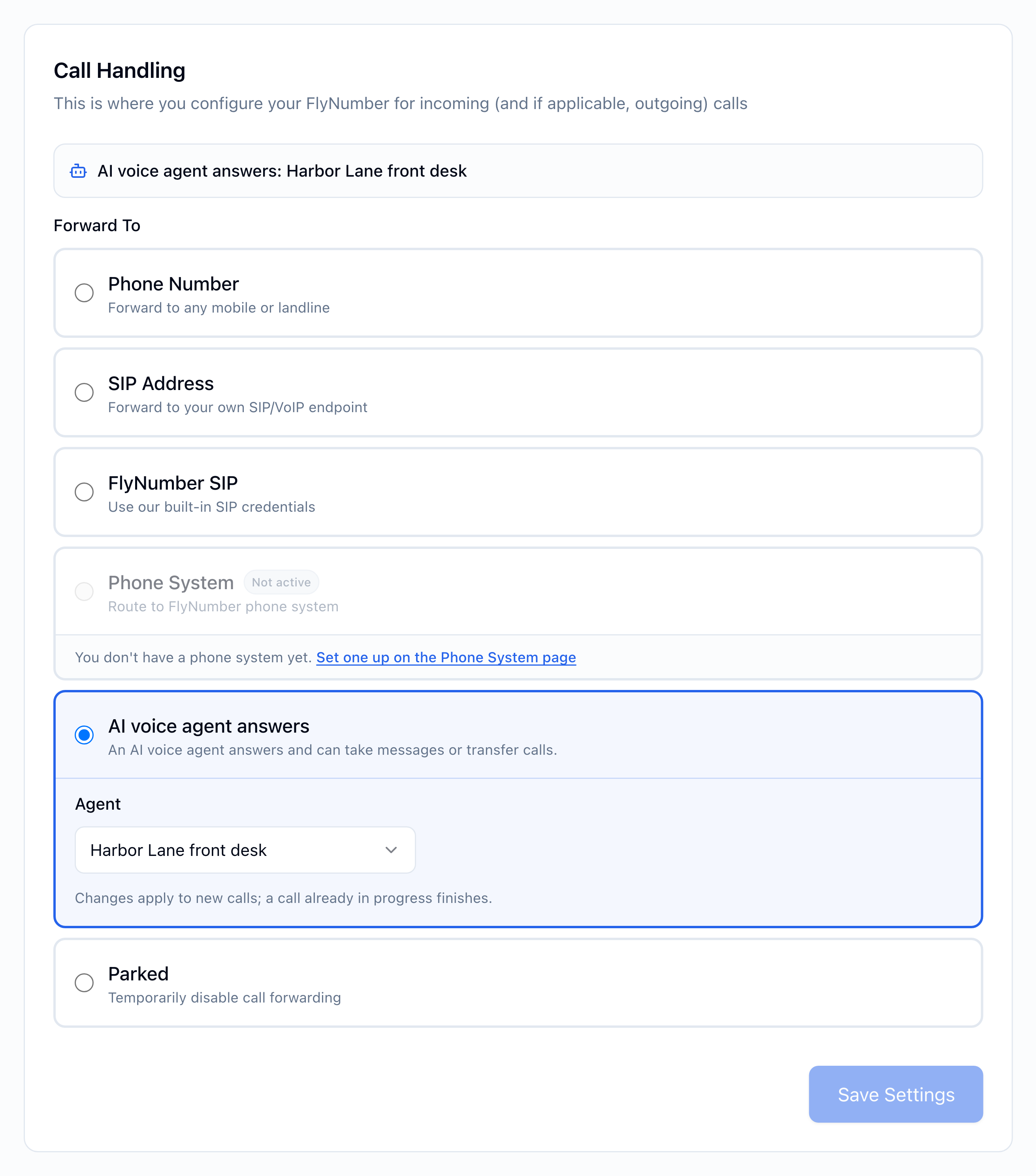
The Call Handling card then shows AI voice agent answers: followed by the agent's name, and the number appears as AI voice agent: plus the name in your My FlyNumbers list. On the AI Voice Agents page, the agent's card reads Answering plus the number.
The change applies to new calls; a call already in progress finishes as it started. Connecting is done from a number you already have. It isn't one of the choices in the Add FlyNumber flow, so pick another call handling option there and switch afterwards.
A number is connected to one agent at a time. One agent can answer several numbers; they're listed on its Calls & limits tab under Numbers.
Disconnect a number
Open the number, choose any other call handling option (such as Phone Number or FlyNumber SIP), and click Save Settings. This is always allowed and doesn't affect the agent itself.
If a connected agent is suspended
The number's Call Handling card shows that the agent is paused, and callers are sent to the agent's fallback.
Delete an agent
- Disconnect every number from the agent first. While any number is connected, the delete button is turned off and the tab tells you which numbers it's answering.
- Open the agent's Calls & limits tab and scroll to Delete this agent.
- Click Delete this agent, then Delete to confirm.
The agent's saved versions are deleted, and this can't be undone. Its call history stays in your records.
If a number was connected to the agent recently, even one you've since disconnected, you may see This agent was just connected to a number. Try again in a few minutes. Wait a few minutes and try again.