Knowledge and Transfers
The Connections tab has two parts: the facts the agent answers from, and the places it can transfer callers to.
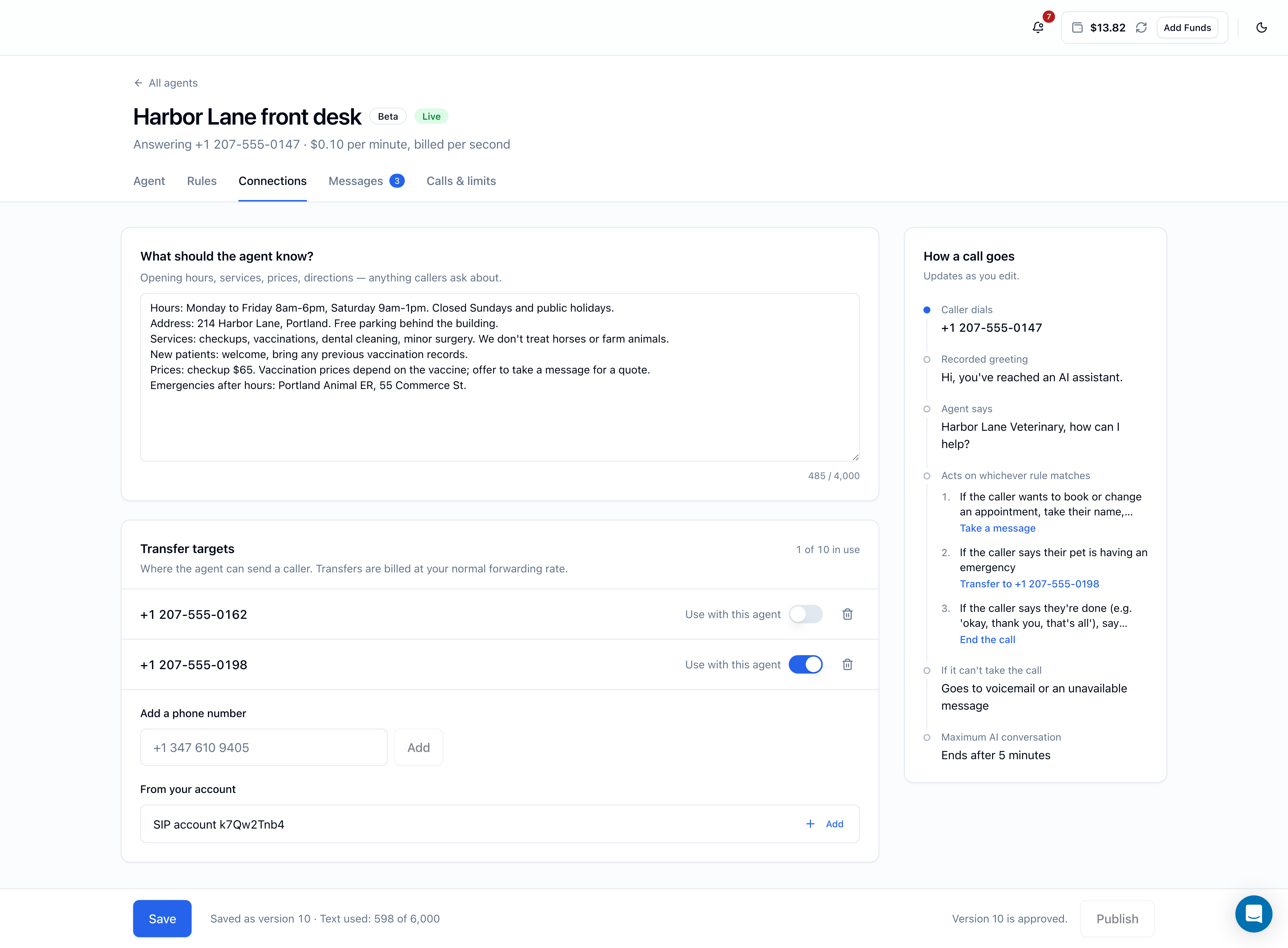
What should the agent know?
Write the facts callers ask about: opening hours, services, prices, directions, policies. Up to 4,000 characters; a counter under the box shows how many you've used.
The agent is instructed to answer only from these facts and never to invent any. If something isn't written here, the agent doesn't know it. Pair this with a Take a message rule so callers with other questions can still reach you.
Plain, short lines work well. For example:
Hours: Monday to Friday 8am-6pm, Saturday 9am-1pm. Closed Sundays and public holidays.
Address: 214 Harbor Lane, Portland. Free parking behind the building.
Services: checkups, vaccinations, dental cleaning, minor surgery. We don't treat horses or farm animals.
New patients: welcome, bring any previous vaccination records.
Prices: checkup $65. Vaccination prices depend on the vaccine; offer to take a message for a quote.
Emergencies after hours: Portland Animal ER, 55 Commerce St.
For a personal number, it might be as simple as:
I'm usually unavailable 9am-5pm on weekdays. For work matters, email is fastest: dana@example.com.
Everything here counts toward the Text used total at the bottom of the page. Changes take effect for callers once you save and publish.
Transfer targets
Transfer targets are where the agent can send a caller when a Transfer to… rule matches. Transfers are billed at your normal forwarding rate.
Targets work at two levels:
- Your account's list. Targets you add are available to all your agents. An account can have up to 20 transfer targets.
- This agent. Turn on Use with this agent next to each target this agent may use. An agent can use up to 10; the card shows how many are in use (for example 2 of 10 in use).
Kinds of targets
| Kind | How it's added | Shown as |
|---|---|---|
| A phone number | Typed into Add a phone number | The number, e.g. +1 207 555 0147 |
| A FlyNumber SIP account | Picked from From your account | SIP account followed by its username |
| A SIP address one of your numbers already forwards to (via SIP Address call handling) | Picked from From your account | The SIP address |
You can't type in a SIP address or SIP account that isn't already set up on your account. The From your account list shows only your active FlyNumber SIP accounts and the SIP addresses your numbers forward to, minus any you've already added.
Add a target
A phone number:
- On the Connections tab, go to Add a phone number.
- Type the number with its country code, for example
+44 20 7946 0321. Spaces, dots, dashes and parentheses are fine; they're removed for you. - Click Add.
If the number can't be used, you'll see That doesn't look right. Enter a phone number with its country code, or pick one of your SIP accounts.
A FlyNumber SIP account or SIP address: under From your account, click Add next to it.
Then, for either kind:
- Turn on Use with this agent next to the new target.
- On the Rules tab, set a rule's action to Transfer to… and click the target.
- Click Save, then Publish when you're ready.
Remove a target
Click the bin icon next to a target to remove it from your account (and so from every agent). If an agent still uses it, you'll see An agent still uses this transfer target. Remove it from the agent's rules and save, then try again.
To stop only one agent from using a target, turn off Use with this agent instead, then save.
What callers experience
When a transfer rule matches, the agent transfers the caller to that target. In the agent's call history, the call's result shows Transfer requested. That result means the agent handed the call over; it doesn't confirm that someone picked up at the target.